

 Blog
BlogHunt blog › Everyday India online
12 ways to use less mobile data while browsing
Daily data running out by evening? Twelve simple settings for Android, iPhone, WhatsApp and laptops that cut mobile data use without losing anything.
Kiran's daily data pack runs out most days around 7 pm, just when the evening's cricket highlights and family WhatsApp videos arrive. Kiran doesn't watch films on the phone or play online games. So where does it all go?
Kiran isn't unusual. According to TRAI, the average Indian wireless data user got through 25.51 GB a month in 2025-26, up from 21.53 GB the year before. That is about 850 MB a day, and most of it isn't spent on purpose. It goes on videos that play by themselves, apps updating in the background, photos backing up, and ads loading on every page.
Here are twelve changes, roughly in order of how much they save. None of them needs a new app, and most take under a minute.
1. Find out where your data goes
Before changing anything, look at which apps used the most data this month. You may be surprised.
- Android: Settings → Network and Internet → Internet → the settings icon next to your operator → App data usage. The exact words differ between phone brands; searching "data usage" in Settings usually finds it.
- iPhone: Settings → Mobile Data, then scroll down. Each app shows how much it used, with a switch to stop it using mobile data altogether.
If a game you rarely play, or an app you forgot you had, is near the top, switch off its mobile data or uninstall it.
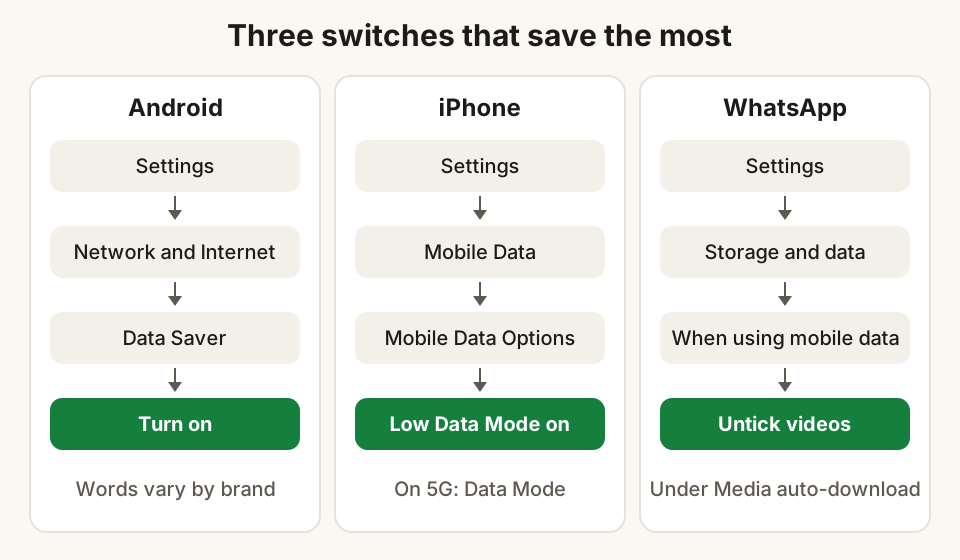
2. Turn on your phone's data saver
Both kinds of phone have a single switch that makes apps more careful.
- Android, Data Saver: Settings → Network and Internet → Data Saver. Most apps then use background data only on Wi-Fi. You can still allow your chat app, for example, under Unrestricted data.
- iPhone, Low Data Mode: Settings → Mobile Data → Mobile Data Options → Low Data Mode (on 5G, it is under Data Mode). It pauses automatic downloads, backups and photo sync, turns off background app refresh, and lowers streaming quality.
3. Lower video quality
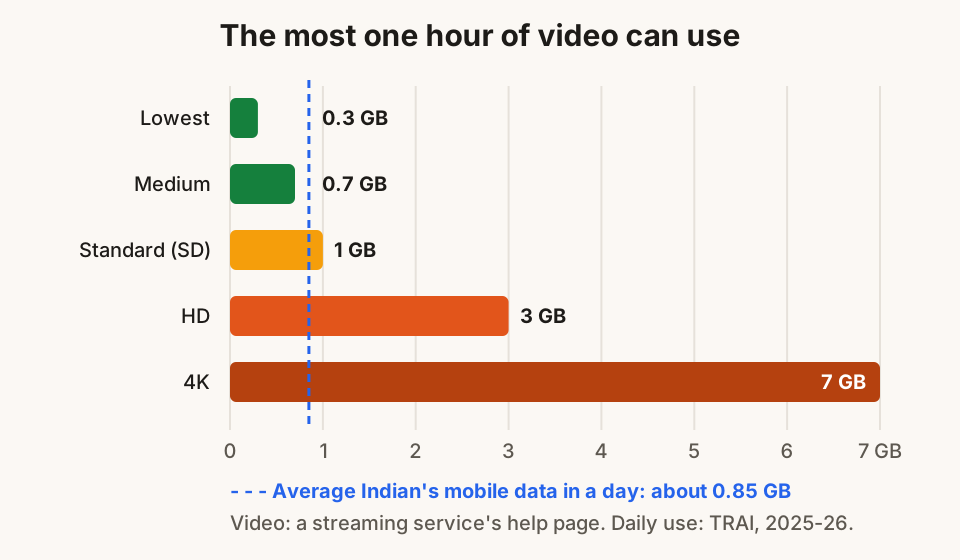
Video is by far the biggest user of data. One streaming service's own help page gives these figures for an hour of viewing: up to 0.3 GB on its lowest setting, 0.7 GB on medium, about 1 GB in standard definition, 3 GB in HD and 7 GB in 4K.
A phone screen doesn't need HD. In any video app or site, open the settings (often a gear icon on the video) and pick a lower quality, such as 360p or 480p, when you are on mobile data. Many apps also have a "data saver" or "mobile data quality" option in their own settings, so you only have to set it once.
4. Stop videos playing by themselves
Social apps and news sites often start videos the moment you scroll past them, even if you never watch them. Look in each social app's settings for Autoplay or Media quality and choose "Wi-Fi only" or "Never". This one change can save more than any other on a busy feed.
5. Change WhatsApp's media auto-download
By default, WhatsApp downloads photos automatically on mobile data, and family groups can send a lot of them. Choose what downloads on its own:
- Open WhatsApp → Settings → Storage and data.
- Under Media auto-download, tap When using mobile data.
- Untick videos and documents, and photos too if you like. Anything you want, you can still tap to download.
While you are there, keep auto-download off When roaming, because roaming data costs much more.
6. Update apps only on Wi-Fi
App updates can be hundreds of megabytes each.
- Android: open the Play Store → tap your profile picture → Settings → Network preferences → Auto-update apps → Update over Wi-Fi only.
- iPhone: Low Data Mode (step 2) already stops automatic updates on mobile data.
7. Block ads and trackers
Every advert on a web page is extra images, scripts and often video, loaded from other companies' servers along with tracking code. On a news site, this can add up to more than the article you came to read. Blocking ads and trackers means less to download on every page, and pages also open faster on a weak signal. Our guide to how ad trackers follow you explains what these scripts do.
8. Close tabs you aren't using
Live cricket scores, news pages and social feeds keep refreshing while they are open, even in a tab you have forgotten about. Close the tabs you don't need, especially live pages, before you put the phone down. On a laptop, closing a busy tab is better than minimising the window.
9. Download at home, use on the go
If you have Wi-Fi at home, college or the office, use it to fill up before you leave:
- Download the area you will travel in your maps app for offline use. Directions then work with very little data.
- Download podcasts, music playlists and episodes you plan to watch on the bus or train.
- Download the PDFs and notes you need for the day.
10. Back up photos on Wi-Fi only
Photo and video backup is quiet, constant and heavy. In your backup app's settings, make sure "back up over mobile data" is off. On iPhone, Low Data Mode pauses photo sync automatically. Your photos will catch up the next time you're on Wi-Fi.
11. Be careful with laptop hotspots
A laptop connected to your phone's hotspot behaves as if it is on home Wi-Fi: it may download system updates, sync cloud folders and back up files. Tell it to be careful:
- Windows 11: Settings → Network & internet → Wi-Fi → select your phone's hotspot → turn on Metered connection. Windows then downloads fewer updates automatically on that network.
- Mac: System Settings → Wi-Fi → Details next to your phone's hotspot → turn on Low data mode.
Also pause cloud folder syncing while you are on the hotspot, and avoid big downloads until you are back on Wi-Fi.
12. Set a data warning
Finally, let your phone tell you before you run out. On Android, the same screen as step 1 has Data warning and limit. Set a warning a little below your daily or monthly allowance, so you know when to switch to lighter use. A limit turns mobile data off completely when you reach it, which is useful for a child's phone. On iPhone, check the usage list in Settings → Mobile Data from time to time, and tap Reset Statistics at the start of each billing cycle so the numbers are easy to read.
How Hunt Browser helps
Hunt Browser blocks other sites' ads and trackers before they load, and your new tab shows how much data and time the blocking has saved. On Windows and Mac, Fewer video ads mutes and skips video ads where it can, and the network limit in the Hunt button can cap download speed so one busy tab doesn't use up a hotspot. If you use Hunt AI on your computer, its on-device model is downloaded once on Wi-Fi and then works on your computer without sending pages anywhere.
Questions
Does Data Saver or Low Data Mode stop my messages from arriving?
No. Chats still arrive while you are using the app, and on Android you can mark your chat app as "Unrestricted" under Data Saver so it also works in the background. What changes is that background downloads, backups and updates wait for Wi-Fi.
Which uses more data, a web page or a video?
Video, by a long way. An hour of standard-definition video can use up to about 1 GB, while reading news pages for an hour uses a small fraction of that, especially with ads blocked. If you want to save data, video settings are the first place to look.
Does dark mode save mobile data?
No. Dark mode changes how a page is shown on your screen, not how much is downloaded. It can help with glare at night, but it doesn't reduce data use.
Is it safe to use free public Wi-Fi to save data?
It can be, with care. Stick to sites with the padlock, avoid banking on unknown networks, and switch off automatic joining. Our guide to using public Wi-Fi safely covers the details.
Why does my data still run out after all this?
Check the per-app list again after a few days. Often one app, such as a short-video app or a game, is still using data in the background. Switch off its mobile data, or use it only on Wi-Fi.
Sources
- The Indian Telecom Services Yearly Performance Indicators 2025-26, Press Release No. 127/2026 (TRAI, 5 October 2026)
- How can I control how much data is used? (Netflix Help Center)
- Reduce and manage mobile data usage (phone help)
- Use less mobile data with Data Saver (phone help)
- Use Low Data Mode on your iPhone or iPad (iPhone support, India)
- Use mobile data on your iPhone or iPad (iPhone support)
- How to configure auto-download (WhatsApp Help Center)
- How to update apps on Android (Play help)
- Metered connections in Windows (Windows support)
- Wi-Fi settings on Mac (Mac support)
Hunt Browser blocks ads and trackers before they load, and has Hunt AI built in. Free for Windows and Mac.
Keep reading
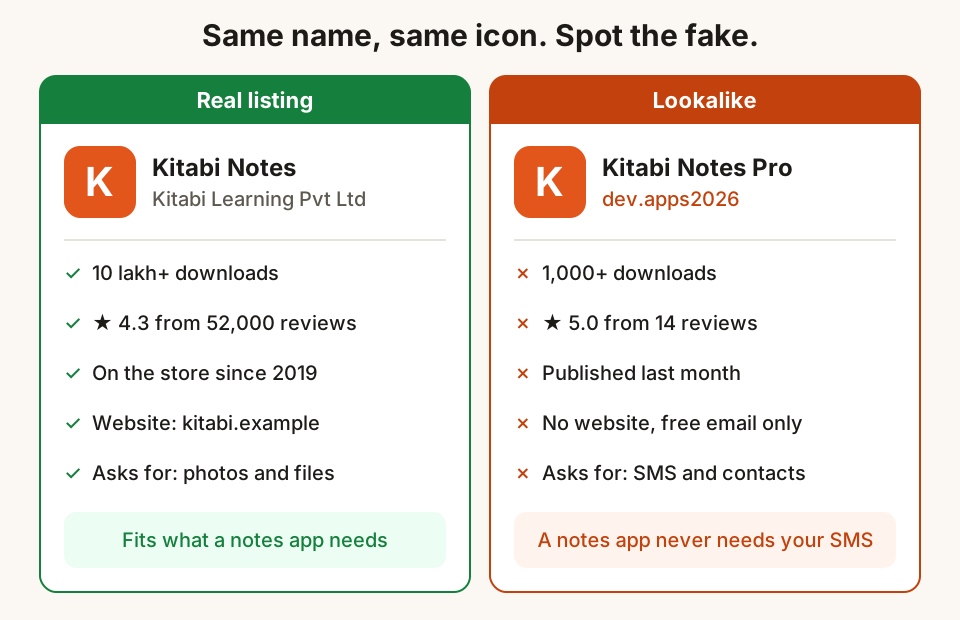
How to tell a fake app or browser extension from the real one
Fake apps and extensions copy real names and logos to steal OTPs and data. Six checks before you install, and what to do if you already have.
31 October 2026 · 10 min read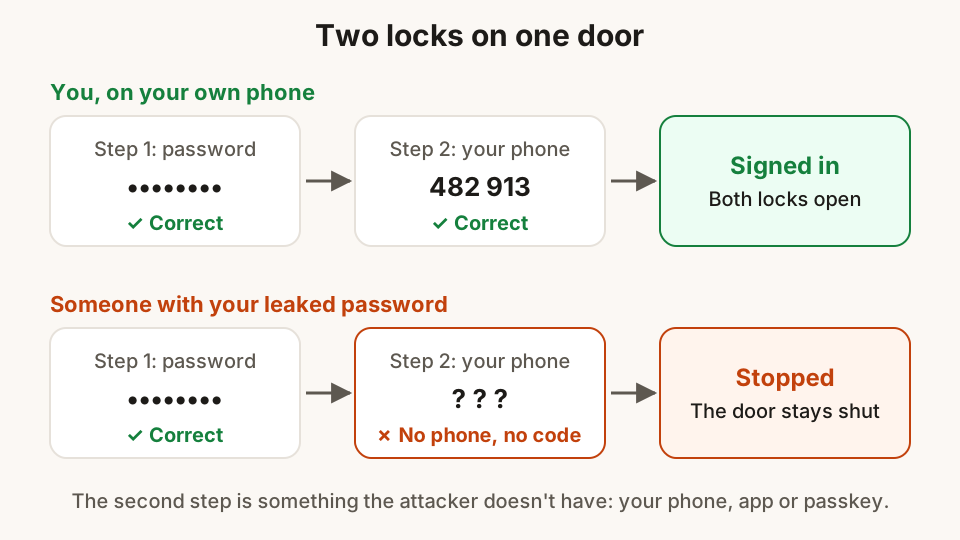
Two-step verification: switch it on for the accounts that matter
A password alone is easy to steal. How two-step verification works, which kind to pick, and the order to switch it on for email, WhatsApp and social media.
30 October 2026 · 9 min read
What website cookies are, and what "Accept all" really means
Cookies keep you signed in and remember your language, but some follow you from site to site. What the banner buttons do, and how to choose well.
29 October 2026 · 10 min read