

 Blog
BlogTwo-step verification: switch it on for the accounts that matter
A password alone is easy to steal. How two-step verification works, which kind to pick, and the order to switch it on for email, WhatsApp and social media.
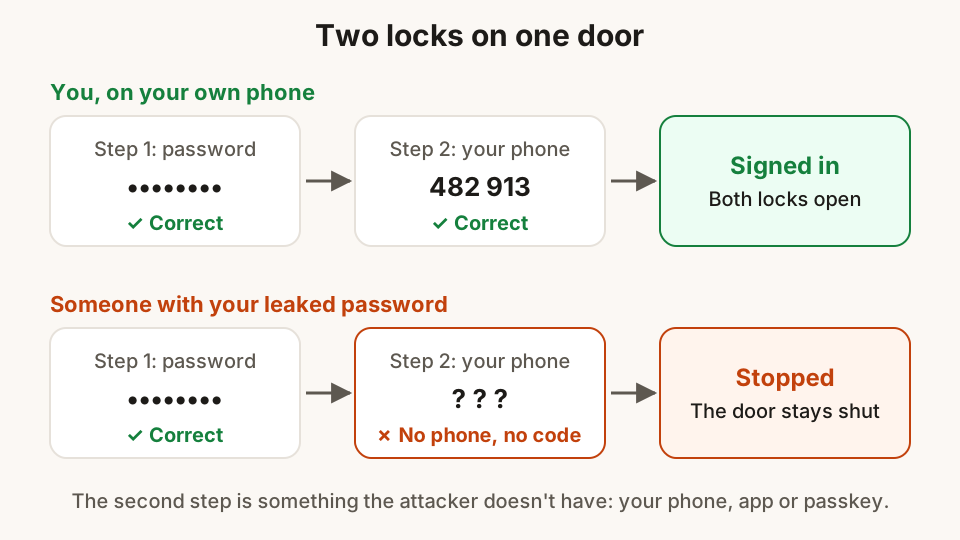
Arjun used the same password for a cricket fantasy forum he joined in college and for his Instagram account. Years later the forum was breached, its password list ended up online, and one evening Arjun's Instagram started posting crypto "investment" offers to his friends.
Nothing Arjun did that evening caused it. The password had already escaped. What would have stopped the attacker is a second check that a stolen password cannot pass: a code on his phone, a tap on a prompt, or a passkey.
That second check is called two-step verification. It takes about five minutes per account to switch on, and this guide shows where to start, which kind to choose, and how not to lock yourself out.
What two-step verification is
When you sign in with only a password, you prove one thing: that you know a secret. Two-step verification adds a second proof that you have something, usually your phone, or that you are someone, such as your fingerprint unlocking a passkey.
You will see different names for the same idea: two-step verification, two-factor authentication (2FA), login approvals or multi-factor authentication. They all mean that the password is no longer enough on its own.
The important part is what happens when your password leaks. Someone in another city types it in, the site asks for the second step, and they don't have your phone. The door stays shut, and many services also send you an alert that someone tried.
Why a password alone isn't enough
Passwords escape in three common ways:
- Leaks. A site you used years ago is breached, and its list of emails and passwords is sold or posted. If you reused that password, every account that shares it is open.
- Phishing. A fake login page, often sent as a link in SMS or WhatsApp, asks for your password and passes it straight to the scammer. Our guide on spotting phishing links shows how to catch these.
- Guessing. Short or common passwords, like a name plus a birth year, can be guessed by software in seconds.
A password manager and unique passwords fix the first and third. Two-step verification is what protects you when, despite your care, a password still gets out. Read more in passwords, password managers and passkeys, explained simply.
The kinds of second step, from good to best
Not every second step is equally strong. Any of them is far better than none.
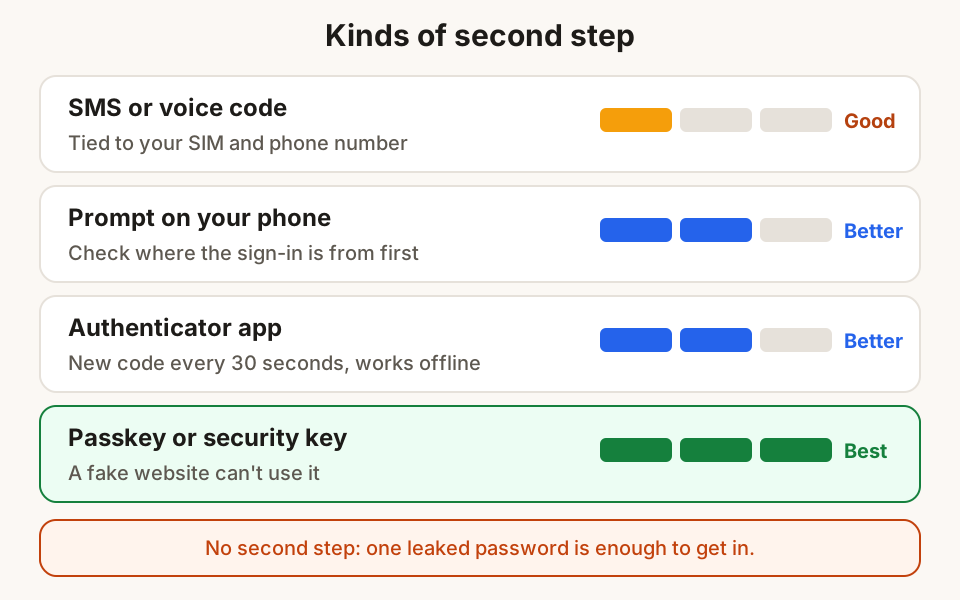
| Method | How it works | Good to know |
|---|---|---|
| SMS or voice code | A 6-digit code is sent to your phone number | Easy, but tied to your SIM, so it is weaker against attacks on your phone number |
| Prompt on your phone | Your signed-in phone asks "Is this you?" and you tap Yes or No | Read where the sign-in is from before you tap Yes |
| Authenticator app | An app on your phone shows a new 6-digit code every 30 seconds | Works without internet or mobile signal |
| Passkey or security key | Your phone or a small USB key confirms with your fingerprint, face or screen lock | Resists phishing, because a fake site can't use it |
SMS codes are what most people already know from banking. Their weakness is that they belong to your phone number, not your phone. If someone talks a shop into issuing a duplicate SIM for your number, or tricks you into reading the code aloud, they get the code.
Authenticator apps generate codes on the phone itself, using a shared secret set up once by scanning a QR code. The code changes every 30 seconds and never travels over SMS, so a duplicate SIM doesn't help an attacker.
Passkeys and security keys are the strongest. A passkey is tied to the real website, so even if you are tricked into opening a fake page, there is nothing for it to hand over. Where a service supports passkeys, signing in with one usually counts as both steps at once.
Which accounts to protect first
You don't have to do everything tonight. Start at the top of this list and work down, one or two accounts a day:
- Your main email. It is the master key: almost every other account can be reset through it. If someone controls your email, they can take the rest.
- WhatsApp. Account takeovers are a common way to ask your contacts for money in your name.
- Instagram, Facebook and other social accounts. These are used to spread scams to people who trust you.
- Cloud storage and photo backup. These hold copies of your Aadhaar, PAN, marksheets and family photos.
- Shopping sites and wallets with saved cards or addresses.
- Work and college accounts, if your organisation hasn't already made two-step verification mandatory.
Banking and UPI payments already ask for more than a password. Since 1 April 2026, the RBI's directions require at least two factors of authentication for digital payments. That protection is only as strong as the email and SIM linked to your bank, which is why email comes first on this list.
How to switch it on
Menus change from time to time, and the exact words can differ between Android and iPhone, but the paths below are a good guide.
Your email account
Open your account's settings on the web and go to the Security section (sometimes called "Security and sign-in"). Look for 2-Step Verification or Two-factor authentication, choose Turn on, and follow the steps. Add a second method as well as your phone number, such as an authenticator app or a passkey, and save the backup codes it offers.
- Open WhatsApp and go to Settings, then Account.
- Tap Two-step verification, then Turn on.
- Choose a password you will remember. WhatsApp used a 6-digit PIN for this until 2026 and now uses a longer password, so if you still have a PIN, update it.
- Add an email address when asked, so you can reset the password if you forget it. Type it carefully.
While you are there, Settings → Account → Passkeys lets you add a passkey too.
Instagram and Facebook
- Open your profile, then the menu, then Settings.
- Go to Accounts Center, then Password and security.
- Tap Two-factor authentication, choose the account, and pick a method: an authentication app is recommended, or text message.
- After it is on, find Additional methods and save your backup codes.
Backup codes and a lost phone
The most common worry is "what if I lose my phone?" Plan for it on the day you switch two-step verification on, not after.
- Save the backup codes. Most services give you a set of one-time codes. Each works once if your phone is gone. Keep them in your password manager, or print them and keep the paper with your important documents. Don't keep them only on the same phone.
- Add a second method. A second phone number, an authenticator app and a passkey together mean losing one doesn't lock you out.
- Changing phones? Move your authenticator app's accounts to the new phone, or set them up again, before you reset or sell the old one.
- Lost the SIM? Your mobile operator can issue a replacement SIM with the same number after checking your identity, and SMS codes will work again.
A few habits that keep it working
- Read before you tap Yes. A sign-in prompt that arrives when you aren't signing in is a warning, not a nuisance. Tap No, then change that account's password.
- Look at the device list. Most services show where your account is signed in. Remove phones and computers you don't recognise.
- Keep your recovery details current. An old phone number or college email you can't reach any more is a gap in your defences.
- Help one person. Parents and grandparents are often targeted. Ten minutes setting up WhatsApp two-step verification on their phone is one of the kindest security favours you can do.
Questions
Is two-step verification the same as two-factor authentication?
For everyday purposes, yes. Both mean you need a second proof besides your password, such as a code, a prompt on your phone or a passkey. Different companies use different names for the same protection.
Will I have to enter a code every time I open an app?
Usually not. Most services ask for the second step when you sign in on a new phone or computer, or after a long gap, not every time you open the app on a device you already use.
Are SMS codes still worth using?
Yes. An SMS code is weaker than an authenticator app or a passkey, but it still stops most attacks that start with a leaked or phished password. Use it if it is the only option, and add a stronger method where the service offers one.
What happens if I lose my phone?
Use one of your saved backup codes, or another method you set up, such as a second number or a passkey on another device. Then remove the lost phone from the account's device list. If you didn't save backup codes, use the service's account recovery steps, which can take a few days.
Do I need this for UPI apps?
UPI payments already need your UPI PIN, and the RBI requires at least two factors for digital payments. What you should protect with two-step verification is the email account and any app login linked to your bank, and you should never share your UPI PIN or OTP with anyone.
Sources
- Turn on 2-Step Verification (account help)
- How to manage two-step verification settings (WhatsApp Help Center)
- Passkeys and more account security features (WhatsApp blog, August 2026)
- Securing your account with two-factor authentication (Instagram Help Centre)
- How to use a backup code on Instagram (Instagram Help Centre)
- RFC 6238: TOTP, time-based one-time passwords (IETF)
- Passkeys (FIDO Alliance)
- Authentication mechanisms for digital payment transactions, press release (RBI, 25 September 2025)
- National Cybercrime Reporting Portal and helpline 1930 (I4C, Ministry of Home Affairs)
Hunt Browser blocks ads and trackers before they load, and has Hunt AI built in. Free for Windows and Mac.
Keep reading
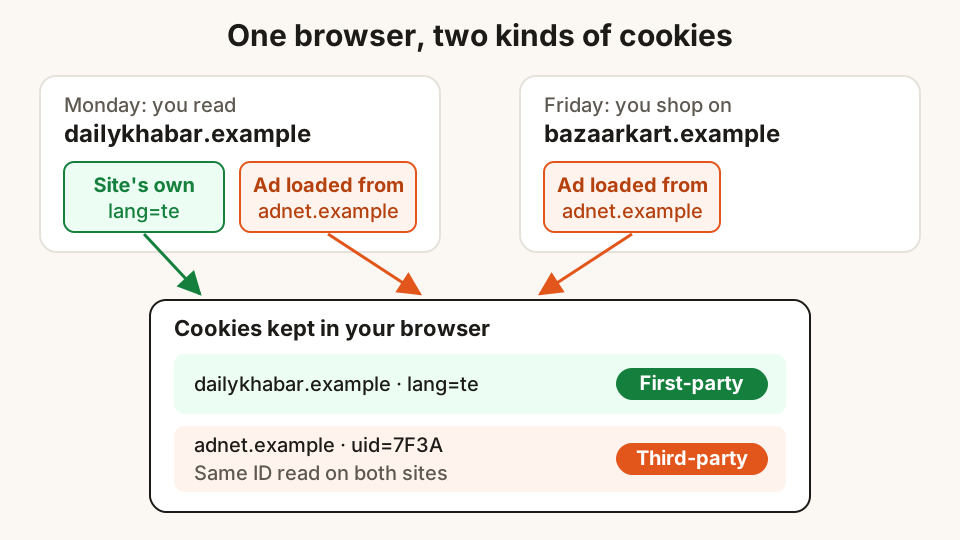
What website cookies are, and what "Accept all" really means
Cookies keep you signed in and remember your language, but some follow you from site to site. What the banner buttons do, and how to choose well.
29 October 2026 · 10 min read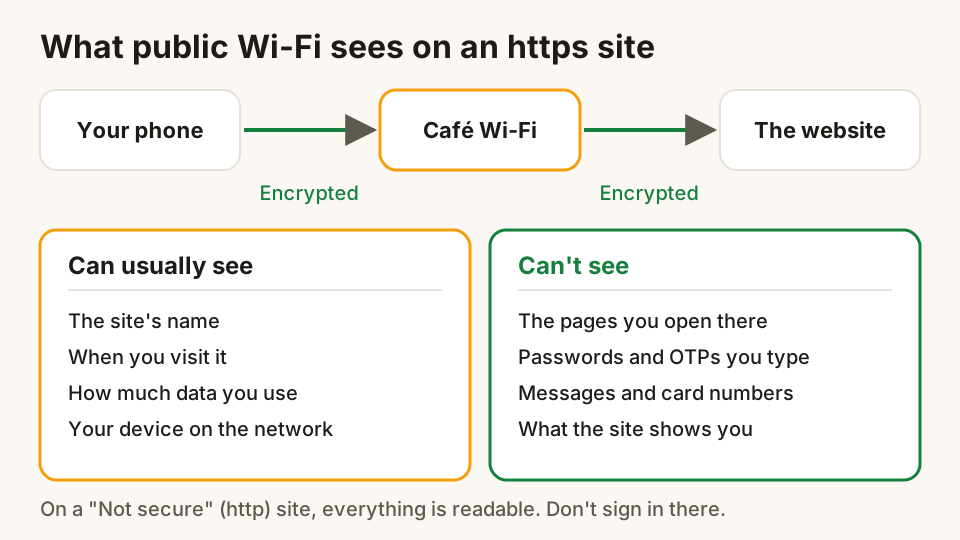
Using public Wi-Fi at stations, cafés and airports safely
What free Wi-Fi can and can't see, how to spot a fake hotspot or login page, which settings to change, and what to keep on mobile data instead.
28 October 2026 · 8 min read
Passwords, password managers and passkeys, explained simply
Why reused passwords get people hacked, how long a good password should be, how a password manager helps, and what passkeys are and how to start using them.
27 October 2026 · 8 min read