

 Blog
BlogPasswords, password managers and passkeys, explained simply
Why reused passwords get people hacked, how long a good password should be, how a password manager helps, and what passkeys are and how to start using them.
Arjun used one password for everything: his email, his college portal, a food delivery app and an old gaming forum. It had his name and birth year in it, with an @ in the middle, so he thought it was strong. Then the gaming forum was breached, and within days someone signed in to his email from another city.
Nobody guessed Arjun's password. They took it from the forum's leaked list and tried the same email and password on popular sites, one after another, automatically. It's called credential stuffing, and it works because most people reuse passwords.
This guide explains what makes a password good today, how a password manager makes good passwords painless, and what passkeys are: the sign-in method that's slowly replacing passwords altogether.
Why passwords fail
Passwords fail in three main ways, and only one of them is about being "weak".
- Reuse. One leak from any site, even one you've forgotten about, unlocks every account that shares the password.
- Guessing. Attackers try common passwords and patterns first: names, birth years,
123,@, a capital at the start and!at the end. Cracking software tries swaps like@foraearly, because it learns from millions of real leaked passwords. - Phishing. A fake login page simply asks you to type your password in. Even the strongest password doesn't help if you give it away. (See how to spot a phishing link before you tap it.)
So the fix isn't just "make it stronger". It's a different password for every site, long enough that guessing is hopeless, and a sign-in method that doesn't hand secrets to fake pages.
What makes a good password today
The old advice was eight characters with a capital, a number and a symbol, changed every 90 days. That advice produced passwords like Arjun@1995 that are hard to remember and easy to crack.
The United States' National Institute of Standards and Technology (NIST), whose guidance many organisations around the world follow, changed its rules in 2025. Its current digital identity guidelines say:
- A password used on its own should be at least 15 characters long.
- Services shouldn't force you to mix character types, because length matters far more.
- Services shouldn't make you change passwords on a schedule, only when there's a sign it has leaked.
- Services should check new passwords against lists of leaked and common ones.
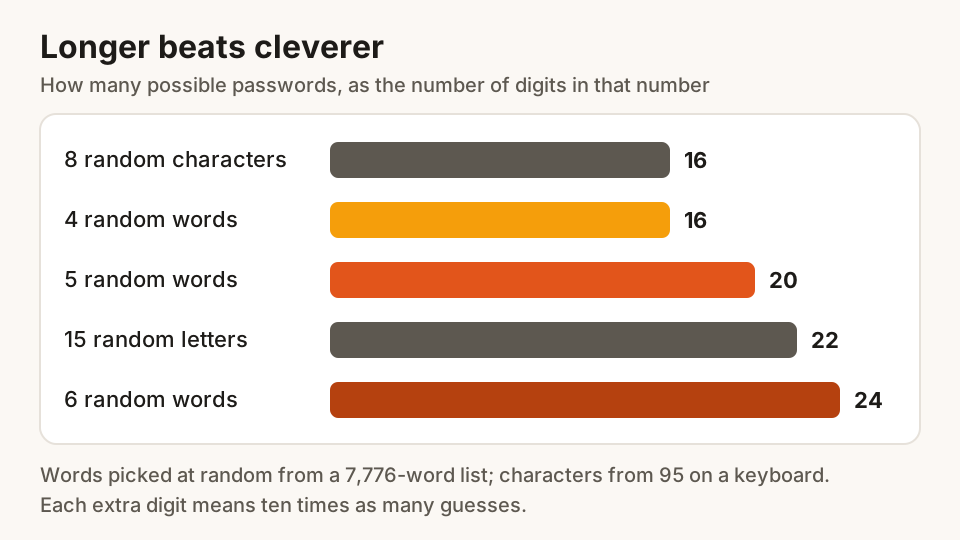
The easiest way to get length you can remember is a passphrase: four to six random, unrelated words, such as mango kite railway pillow sandal. Random is the key word. Song lines, film dialogues and proverbs are the first thing attackers try.
The chart shows why. Four words picked at random from a list of 7,776 give about as many possibilities as eight random characters, but they're far easier to type and remember. Each extra word multiplies the total by 7,776, so five or six words put guessing out of reach.
Password managers: one strong password for all the others
A password manager is a secure, encrypted notebook for passwords. It creates a long random password for each site, remembers it, and fills it in when you sign in. You remember one strong passphrase to unlock it.
Most browsers and phones now include one, and there are separate password manager apps too. All of them do the same core job.
Why it's safer than your memory:
- Every site gets a different password, so one leak stays one leak.
- It won't fill in on a fake site. A password manager matches the real web address. If it doesn't offer to fill your bank password, stop and check the address before typing anything.
- It warns you about reused passwords and, in many cases, about passwords that have appeared in known leaks.
Setting one up in an afternoon
- Pick the one built into your browser or phone, or a well-known app with good reviews in your phone's official app store.
- Protect it with a strong passphrase and turn on two-step verification for the account behind it.
- Let it save passwords as you sign in to sites over the next week. Don't try to do everything at once.
- Start with the accounts that matter most: email, banking, mobile number provider, government services and social media.
- Use the manager's "check passwords" feature to find reused ones, and change them one by one.
Passkeys: signing in without a password
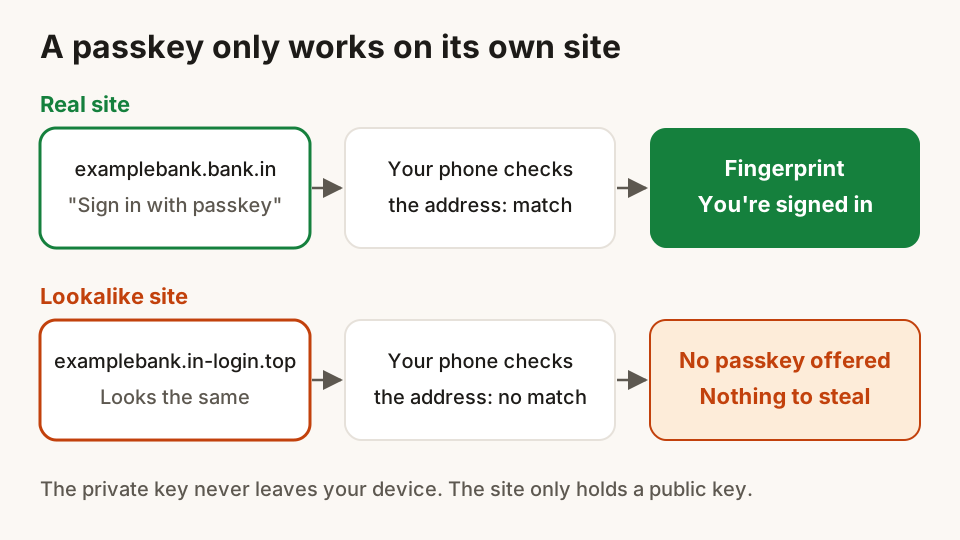
A passkey replaces the password altogether. When you create one for a site, your device makes a matching pair of keys. The site keeps the public key, which is useless to a thief. The private key stays on your phone or computer and never leaves it.
To sign in, you unlock your device the way you always do: fingerprint, face or screen-lock PIN. Your device proves to the site that it holds the private key, and you're in. There's nothing to type, nothing to remember and nothing to leak from the site's servers.
The most important part is that a passkey only works on the site it was made for. Your device checks the real web address. On a lookalike phishing page, there's simply no passkey to offer, so there's nothing for you to give away by mistake.
What happens if I lose my phone?
Many passkeys are synced through the account your phone or computer is signed in to, using end-to-end encryption. Sign in to that account on a new device and your passkeys come back. Some passkeys stay on one device or a hardware security key, and those don't sync.
Either way, keep a second way into important accounts: a recovery phone number, backup codes printed and kept at home, or a second passkey on another device.
How to start using passkeys
- Open the security settings of an account you use often and look for Passkeys, Sign in without a password, or Security keys.
- Choose to create a passkey and confirm with your fingerprint, face or screen lock.
- Next time you sign in, choose the passkey option instead of typing a password.
- Keep your password (in your password manager) for now. Many sites still need it as a fallback, and not every site supports passkeys yet.
A simple plan for this week
- Change your email password to a unique passphrase and switch on two-step verification.
- Set up a password manager and let it collect your passwords as you go.
- Change any password you've used on more than one site, starting with banking and shopping.
- Create a passkey wherever your most-used accounts offer one.
- Never type a password into a page you reached from a link in a message.
If you move to Hunt Browser on Windows or Mac, you can bring your saved passwords and bookmarks across from your old browser on the first start, so you don't have to begin again.
Questions
Should I change my passwords every few months?
Not on a schedule. Current NIST guidance tells services not to force regular changes. A long, unique password doesn't wear out, so change a password when a site tells you it's been breached, when you've reused it elsewhere, or when you think someone else knows it.
Is it safe to let my browser save my passwords?
For most people, yes, and it's much safer than reusing one password everywhere. Lock your computer and phone with a PIN or password so nobody else can open them, and keep your device and browser updated.
What if my password manager gets hacked?
Well-made password manager apps encrypt your saved passwords with a key that comes from your master passphrase, so a stolen copy is useless without it. That's why the master passphrase must be long, unique and never typed anywhere else, with two-step verification on top.
Are passkeys safer than passwords?
Yes, in the ways that matter most. A passkey can't be reused, guessed or leaked from a website, and it won't work on a phishing site. Keep a recovery method for each important account in case you lose your devices.
Can I use passkeys without a smartphone?
Yes. Many computers can store passkeys and unlock them with their own PIN, fingerprint reader or camera, and hardware security keys work too. Each site decides which kinds it accepts.
Sources
Hunt Browser blocks ads and trackers before they load, and has Hunt AI built in. Free for Windows and Mac.
Keep reading
Common UPI scams and the simple habits that stop them
The QR code, payment request, sent-by-mistake and fake helpline tricks used on UPI, the one rule that defeats most of them, and what to do if money goes.
25 October 2026 · 9 min read
How to spot a phishing link before you tap it
Read a web address the right way, catch lookalike sites and fake KYC or bill messages, and know what to do and where to report if you've already tapped.
24 October 2026 · 9 min read
How ad trackers follow you around the web, and how to stop them
Why the cooker you looked at once follows you to every site. Cookies, pixels, fingerprints and tagged links explained, with simple steps that cut tracking.
23 October 2026 · 9 min read