

 Blog
BlogHow ad trackers follow you around the web, and how to stop them
Why the cooker you looked at once follows you to every site. Cookies, pixels, fingerprints and tagged links explained, with simple steps that cut tracking.
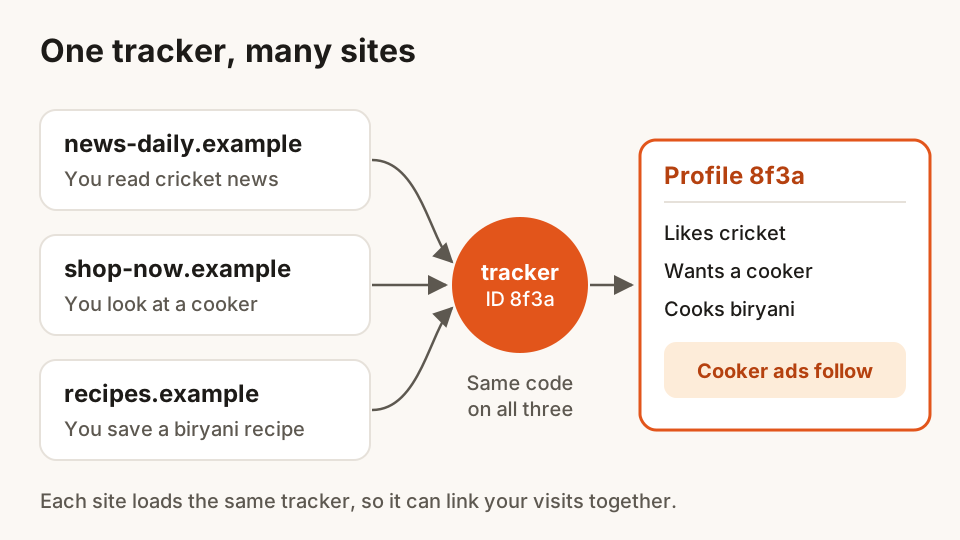
Sneha looked at a pressure cooker on a shopping site one evening. She didn't buy it. For the next week the same cooker turned up on a cricket news site, a recipe blog and a weather page, none of which had anything to do with the shop.
That isn't the shop spying on her through the other sites, and her phone isn't listening to her. It's a handful of ordinary techniques that let advertising companies recognise the same browser as it moves from site to site. Once you know how they work, you can switch most of them off in a few minutes.
This guide explains the four main ways trackers follow you, what they do with what they learn, and the settings and habits that cut tracking down without breaking the sites you use.
What a tracker actually is
Most web pages aren't built by one company. A news article may load its text from the news site, but its ads, video player, comment box, share buttons and visitor counter come from other companies. Each of those is a small piece of code that your browser fetches and runs.
A tracker is one of these pieces whose main job is to notice who you are and what you're doing. When the same advertising company's code sits on thousands of sites, it sees a large slice of your day: what you read, what you shop for, and roughly where you are.
None of this needs your name. A tracker is happy with a random ID that means "this browser". Over weeks, that ID collects enough interests to sell your attention to the right advertiser.
The four main ways you are followed
1. Third-party cookies
A cookie is a small note a website stores in your browser so it remembers you, for example that you're signed in. A third-party cookie is set by a company other than the site in your address bar, usually the ad or tracker code embedded in the page.
Because your browser sends that company's cookie back every time its code loads, on any site, the company can tie your visits together. Some browsers now keep each site's third-party cookies in a separate jar by default, which stops this. Others still allow them unless you change a setting, so it's worth checking yours.
2. Tracking pixels
A pixel is an invisible image, often one dot in size, placed on a page or in an email. When your browser or mail app loads it, the tracker's server learns that you opened the page or the email, when, and from which device and network.
Shops use pixels to measure whether an ad led to a sale. Marketing emails use them to see who opened the message. They work even when cookies are blocked, because the request itself is the signal.
3. Fingerprinting
Fingerprinting identifies a browser by what it looks like rather than by anything stored in it. A script quietly reads details such as your screen size, time zone, language, installed fonts and graphics card. Each detail is common on its own, but together they can be rare enough to pick out one browser among millions.
Fingerprints are harder to shake off than cookies because clearing your history doesn't change them. Oddly, changing lots of unusual settings can make you easier to fingerprint, because it makes your browser stand out.
4. Tagged links and sign-ins
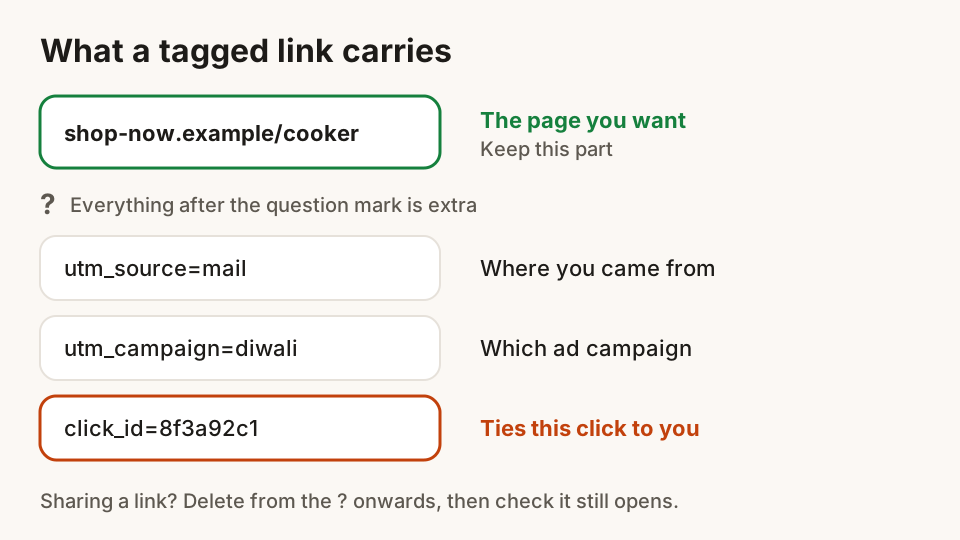
Many links you tap in emails, social apps and ads carry extra text after a question mark: a campaign name, where you came from, and sometimes a unique click ID. When you land on the shop, that ID connects your visit to the ad you tapped, with no cookie needed.
Big platforms you stay signed in to can also recognise you on other sites that use their sign-in buttons, share buttons or ad tools. If you never sign out, your account is the tracking ID.
What trackers do with what they learn
The main use is targeted advertising. Your interests are matched to advertisers in an automatic auction that runs in a fraction of a second while the page loads. The winning ad is the cooker you looked at, or a loan offer if you'd been reading about EMIs.
The same data helps sites measure which ads led to sales, and some of it is combined and resold by data companies. That's where tracking stops feeling useful. You can't easily see who holds a profile of you, what it says, or how long they keep it.
Not every third-party script is bad. Payment pages, video players and sign-in buttons need some of the same machinery to work. The aim isn't to block everything, but to stop the companies whose only job is following you.
How to cut tracking down: seven steps
You don't need to be technical. Do the first three today and you'll stop most of it.
- Use a tracker blocker. It stops known tracker code from loading at all, which also makes pages faster and saves mobile data. Some browsers have one built in; others need an extension from your browser's official store.
- Block third-party cookies. Look in your browser's settings under Privacy (or Privacy and security) for "Third-party cookies" and choose to block them. Most sites keep working; if one doesn't, most browsers let you allow its cookies for that one site.
- Say no on cookie banners. Choose "Reject all" or "Necessary only" instead of "Accept all". It takes one extra tap, and it tells the site not to load its optional trackers.
- Reset the advertising ID on your phone. Apps don't use browser cookies; they use a phone-wide ad ID. On many Android phones it's under Settings, Privacy, Ads, where you can delete the ID (the exact place differs by phone maker, so search Settings for "Ads"). On an iPhone, go to Settings, Privacy & Security, Tracking, and turn off "Allow Apps to Request to Track".
- Separate your signed-in life. Use one browser profile for email, shopping and social accounts, and another for casual reading where you stay signed out. Big platforms then see far less of your day.
- Trim links before you share them. When you forward a shop or news link, delete everything from the question mark onwards, then open it once to check it still works. You protect your friends too.
- Clear cookies now and then. Once a month is plenty. It resets the IDs trackers have stored, though you'll need to sign in to sites again.
What helps less than people think
Private or incognito mode. It deletes cookies and history when you close the window, which helps on a shared computer. While the window is open, trackers work as usual, fingerprinting still works, and the sites, your network and your internet provider still see your visits.
A VPN on its own. A VPN hides your IP address from the sites you visit and from the local network. It doesn't remove cookies, pixels, fingerprints or sign-ins, and you're trusting the VPN company with your traffic instead.
Turning off "personalised ads". This setting, offered by some ad companies, changes which ads you see. It doesn't necessarily stop the data being collected.
How Hunt Browser helps
Hunt Browser blocks other sites' ads and trackers before they load, on every site, from the first start. Blocking happens on your device using public filter lists, including lists made for Indian sites, and Hunt doesn't see the pages you visit. If a site asks you to allow ads, you can pause blocking for that one site from the Hunt button in the toolbar.
Hunt does show a few ads of its own, such as sponsored shortcuts and cards on the new tab. They're always labelled "Sponsored" and never chosen from your browsing history. You can read more on the ad and tracker blocking page.
Questions
Is it legal for websites to track me?
Collecting personal data in India is governed by the Digital Personal Data Protection Act, 2023 and its Rules, which require notice and consent and are coming into force in stages. Many trackers use IDs rather than names, so the rules on what counts as personal data matter. This guide covers safety steps, not legal advice; the settings above work whatever the law says.
Does incognito or private mode stop ad trackers?
Only partly. It throws away cookies when you close the window, so tracking doesn't carry over to your next session. While you're browsing, trackers, pixels and fingerprinting still work. A tracker blocker and blocked third-party cookies do much more.
Will blocking trackers break websites?
Rarely. Payments, sign-in and video usually keep working. If a page breaks, pause the blocker for that site or allow its cookies just there. Most blockers and browsers make this a one-tap change.
Why do I still see ads after blocking trackers?
Some ads are part of the site itself and some are shown without tracking, based only on the page you're reading. You'll see fewer ads, and the ones left won't be based on what you did on other sites.
Sources
Hunt Browser blocks ads and trackers before they load, and has Hunt AI built in. Free for Windows and Mac.