

 Blog
BlogUsing public Wi-Fi at stations, cafés and airports safely
What free Wi-Fi can and can't see, how to spot a fake hotspot or login page, which settings to change, and what to keep on mobile data instead.
Imran had a two-hour wait at the station, a weak mobile signal and a laptop full of work. The free station Wi-Fi asked for his mobile number, sent an OTP, and he was online in a minute. Kavya, at a café across town, joined a network called "Free Cafe WiFi" without asking anyone which one was the café's.
Both connected to public Wi-Fi. Only one of them knew who was running the network.
Public Wi-Fi is much safer than it was ten years ago, mainly because most websites now encrypt everything you send. The risks that remain are specific and easy to avoid once you know them. This guide explains what a hotspot can actually see, the few real dangers, and the settings and habits that keep you safe at stations, cafés, hotels and airports.
What the Wi-Fi owner can and can't see
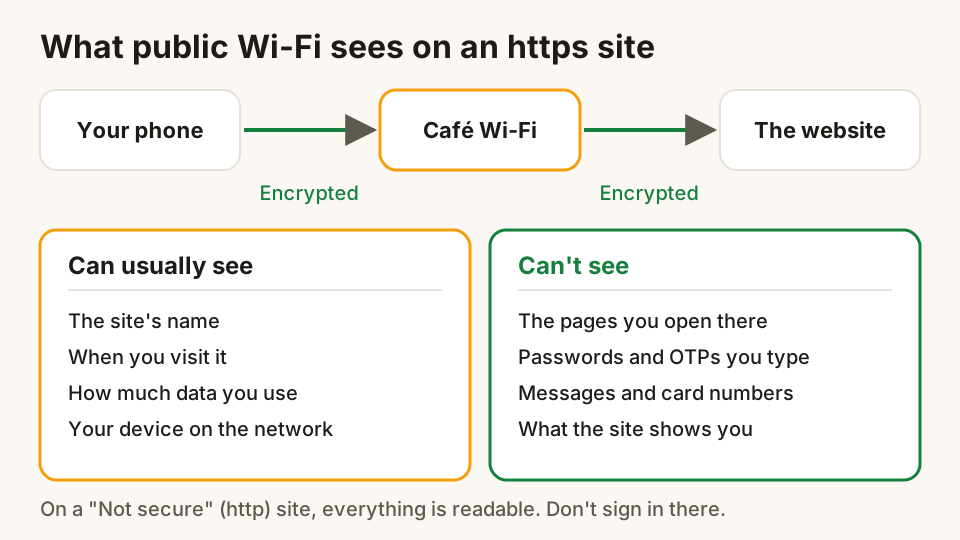
When a site's address starts with https:// and your browser shows a padlock, the connection between your device and that site is encrypted. The café, the station or anyone else on the network can't read what's inside it.
They can usually still see:
- Which sites you visit, by name, such as
examplebank.bank.inor a news site. - When you visit them and roughly how much data you use.
- Your device, for example its network name, and sometimes its type.
They can't see, on an https site:
- The individual pages you open on that site.
- What you type: passwords, messages, card numbers, OTPs.
- What the site sends back, such as your account balance or your emails.
That's reassuring, but it also shows where the real risks are: getting you onto the wrong network, onto a fake page, or onto a site or app that doesn't encrypt.
The real risks, in plain words
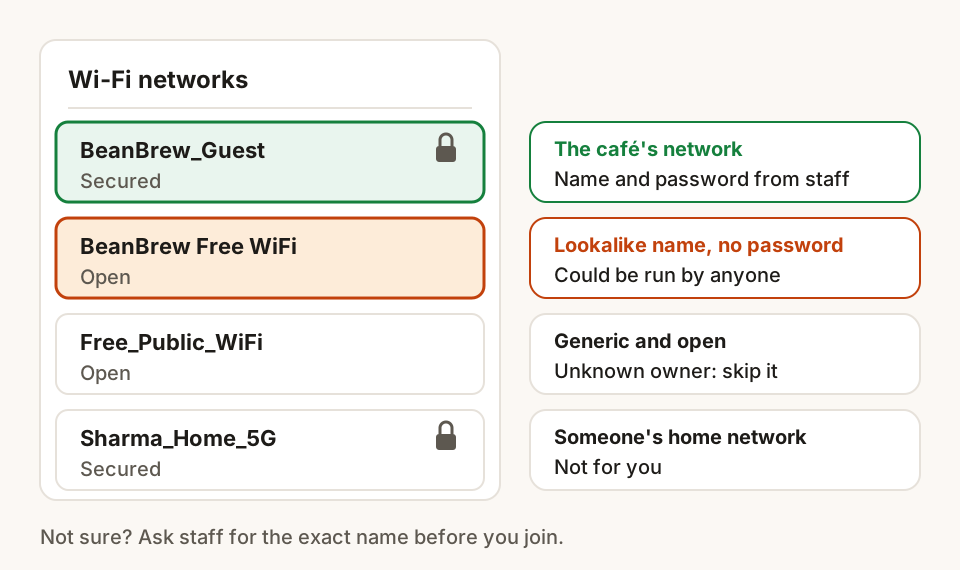
Fake hotspots with friendly names
Anyone can create a Wi-Fi network and call it "Airport Free WiFi" or "Cafe Guest". If you join it, the person running it is your gateway to the internet. They still can't read https traffic, but they can show you fake login pages, redirect you to lookalike sites, or watch which sites you use.
Login pages that ask for too much
Many public networks show a sign-in page before you can browse. Railway station Wi-Fi, for example, asks for your mobile number and sends an OTP by SMS. A sign-in page that asks for card details, your bank login, your email password or social media sign-in "to verify you" is a warning sign, whatever network it's on.
Sites and apps that don't encrypt
A small number of sites, older apps and some home or office devices still send data without encryption. On those, anyone on the same network can read what passes. Your browser usually warns you with "Not secure" next to the address.
Your own device sharing too much
Laptops set up for home often have file sharing, printer sharing or network discovery turned on. On a public network, that can make your shared folders visible to strangers in the same room.
People nearby
Not every risk is technical. In a crowded waiting room, someone can simply read your screen or watch you type a PIN.
Before you connect
- Ask which network is the real one. Check the exact name with staff or on an official sign at the counter. If there are two similar names, ask which one.
- Prefer networks with a password from staff. A password shared at the counter isn't perfect, but it keeps the network smaller and tells you it's run by the place you're in.
- Check the login page's address. It should belong to the place or its Wi-Fi provider, and ask only for what's needed, usually your mobile number and an OTP.
- Turn off auto-join for open networks. Your phone or laptop may otherwise join any network with a familiar name in future, including a fake one.
Settings to change on your laptop
On Windows
When you first join a network, Windows 11 sets it as Public by default, which hides your computer from other devices and turns off file and printer sharing. To check, open Settings, then Network & internet, then Wi-Fi, select the network you're on, and make sure Network profile type is Public network. Keep Private only for your home or office network.
On a Mac
Open System Settings, then General, then Sharing, and turn off File Sharing and any other sharing you don't use. The firewall, under Network in System Settings, adds a second layer.
On your phone
Keep the phone and its apps updated, turn off Wi-Fi when you're not using it, and remove public networks you won't use again from the saved list ("Forget this network").
While you're connected
- Look for
httpsand the padlock on any site where you type anything. If your browser says "Not secure", don't sign in or type personal details there. - Keep payments and banking on mobile data. CERT-In, India's national cyber security agency, advises against banking and shopping on public networks. UPI apps work fine on mobile data, and switching Wi-Fi off for two minutes while you pay costs almost nothing.
- Don't install anything a hotspot asks for. A real Wi-Fi network doesn't need a special app, browser "update" or certificate to let you browse.
- Watch for sudden sign-in requests. If a site you were already signed in to suddenly asks for your password again, check the address carefully before you type.
- Mind your screen. Sit with your back to a wall in busy places and cover the keypad when you type a PIN.
What about a VPN?
A VPN (virtual private network) puts all your traffic in an encrypted tunnel to the VPN company's server, so the local network sees only that you're using a VPN. CERT-In suggests one for public Wi-Fi, and your employer may require one for work.
A VPN moves your trust rather than removing it: the VPN company can see what the café could have seen. Use one from your office, or a well-known paid service with a clear privacy policy. Be wary of free VPN apps you've never heard of, which have to make money somehow.
For everyday browsing on https sites, a VPN is a nice extra, not a must. The habits above matter more.
Free Wi-Fi in India: stations, shops and PM-WANI
Thousands of railway stations offer free Wi-Fi run by RailTel under the name RailWire, where you sign in with your mobile number and an OTP. Under the government's PM-WANI scheme, approved in December 2020, local shops and businesses can also run public hotspots without a licence fee, so you may see Wi-Fi offered at tea stalls and kirana stores.
These networks are useful, and the same rules apply to all of them: confirm the network's name, check that the login page asks only for your number and an OTP, and keep payments on mobile data.
If something went wrong
- You typed a password on a page that felt wrong: change it straight away from a trusted network, and on any other site where you used it.
- You entered card or bank details: call your bank's official number to block the card, and watch your account.
- Money left your account: call the cybercrime helpline 1930 and file a complaint at cybercrime.gov.in.
Questions
Is it safe to use UPI on public Wi-Fi?
UPI apps encrypt their traffic, so the main risk is low, but there's no reason to take it. Switch Wi-Fi off and pay on mobile data, as CERT-In advises for banking and shopping on public networks.
Can the Wi-Fi owner see my messages?
Not if the app or site uses encryption, which most chat apps and https sites do. They can usually see which services you connect to and when, but not what you send.
Is a site with https safe on public Wi-Fi?
The connection is encrypted, so others on the network can't read it. But https doesn't prove the site is genuine, so still check the address before you sign in, especially if you got there through a hotspot login page or a link.
Do I need a VPN for public Wi-Fi?
Not for everyday browsing on https sites, though it adds a layer of protection and your office may require one. If you use a VPN, choose your employer's or a reputable paid service.
Why does station Wi-Fi ask for my mobile number?
Station Wi-Fi, and many other public networks in India, ask you to verify a mobile number with an OTP before you can browse. Giving your number and an OTP there is normal. Being asked for bank details, card numbers or account passwords is not.
Sources
- Internet Safety Awareness Booklet for Digital Nagriks, CERT-In
- CERT-In Advisory CIAD-2016-0081 on public Wi-Fi hotspots
- Cyber Security Handbook, CERT-In, March 2025
- Station Wi-Fi project, RailTel
- Railways' RailWire Wi-Fi goes live in 5,500 stations, Press Information Bureau
- Cabinet approves public Wi-Fi networks through Public Data Offices (PM-WANI), Press Information Bureau
- Essential network settings and tasks in Windows, Microsoft Support
- Change Sharing settings on Mac, Apple Support
Hunt Browser blocks ads and trackers before they load, and has Hunt AI built in. Free for Windows and Mac.
Keep reading
Passwords, password managers and passkeys, explained simply
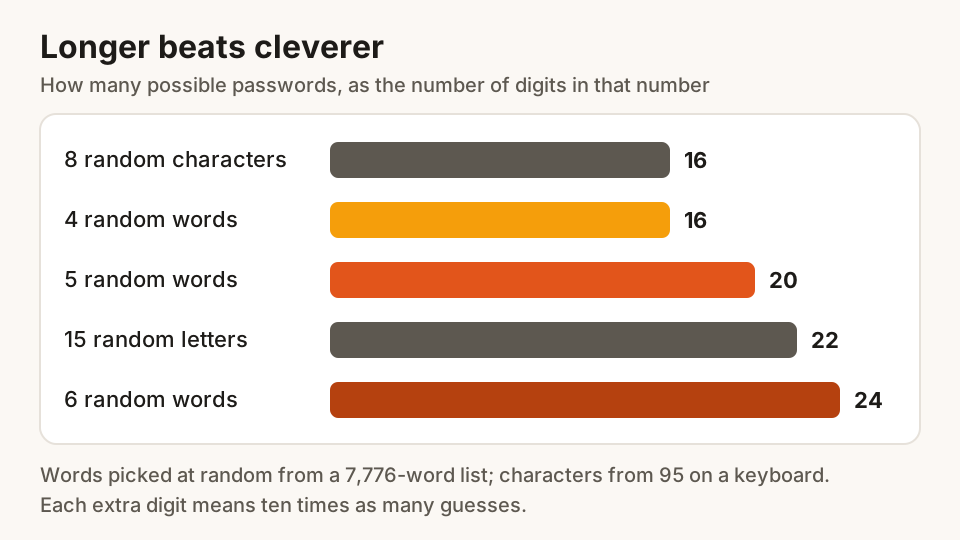
Why reused passwords get people hacked, how long a good password should be, how a password manager helps, and what passkeys are and how to start using them.
27 October 2026 · 8 min read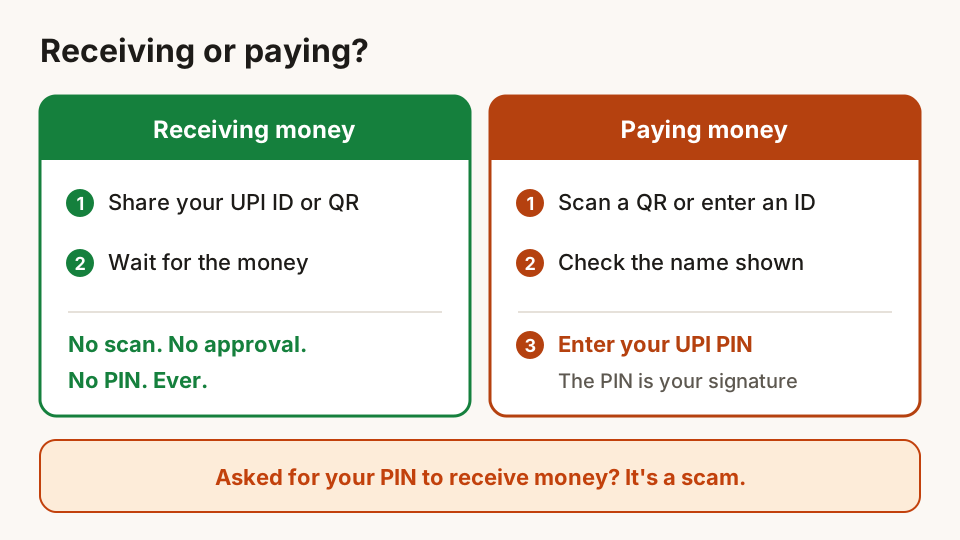
Common UPI scams and the simple habits that stop them
The QR code, payment request, sent-by-mistake and fake helpline tricks used on UPI, the one rule that defeats most of them, and what to do if money goes.
25 October 2026 · 9 min read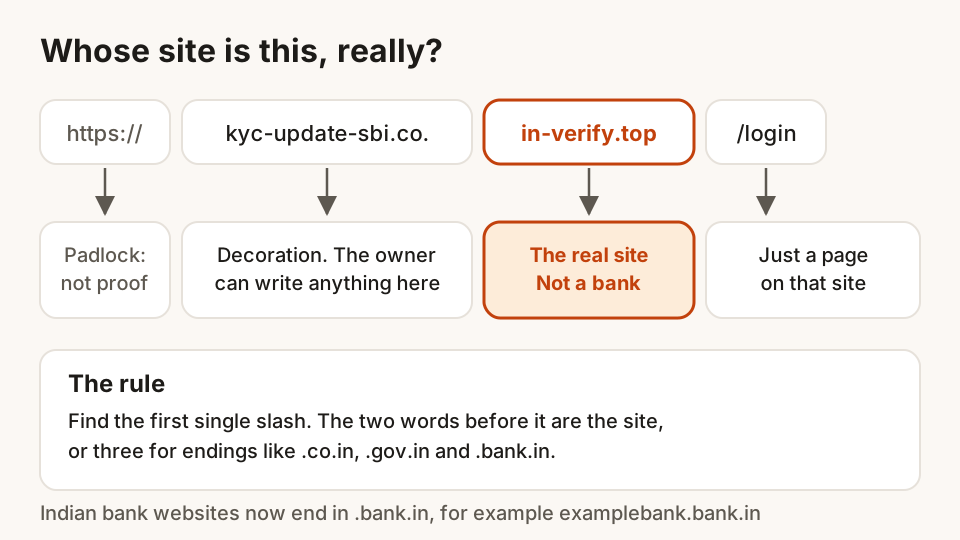
How to spot a phishing link before you tap it
Read a web address the right way, catch lookalike sites and fake KYC or bill messages, and know what to do and where to report if you've already tapped.
24 October 2026 · 9 min read