

 Blog
Too many tabs? A simple system for tabs, memory and focus
Why tabs pile up, what they cost your computer and your focus, and a simple Now, Next, Later system with a five-minute daily tidy and handy shortcuts.
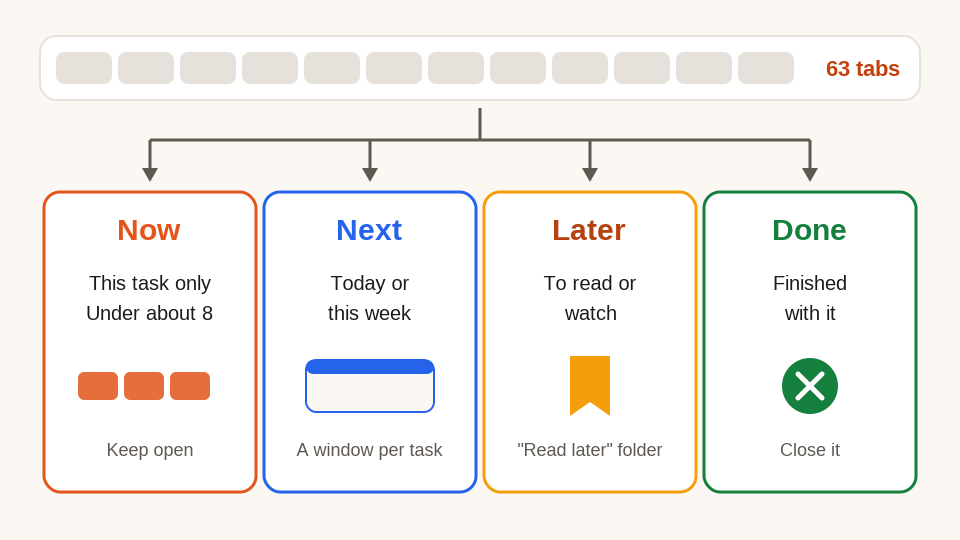
Arjun, an accounts assistant in Pune, counted his tabs one Friday: 63. The GST portal, three bank logins, a half-read article about mutual funds, two copies of the same spreadsheet, a cricket score from Tuesday, and a shopping cart he had forgotten about. His laptop fan had been running for an hour.
If that sounds familiar, you are in good company. In a 2021 study of tab use by researchers at Carnegie Mellon University, about a quarter of the people in one part of the study said their browser or computer had crashed because they had too many tabs open. Many said they felt they couldn't close tabs, even ones they weren't using.
Tabs aren't the problem. They are a brilliant way to keep several things in reach. The trouble starts when tabs become a to-do list, a reading list and a filing cabinet all at once. This guide gives you a simple system that separates those jobs, a five-minute daily tidy, and the shortcuts that make both quick.
Why tabs pile up
The Carnegie Mellon researchers found that people keep tabs open for a handful of understandable reasons. You will probably recognise most of them:
- As reminders. The open tab is a note that says "deal with this".
- To avoid searching again. It took ten minutes to find that page, so closing it feels like throwing work away.
- Because of what's already in them. A form half filled in, a long thread scrolled halfway down.
- Fear of losing it. The researchers call it a "black hole" effect: people felt that once something went out of sight, it was gone for good.
Every one of these is reasonable. The fix isn't to feel guilty about tabs. It's to give each of those jobs a better home, so a tab can close without anything being lost.
What too many tabs really cost
Memory and speed. Each tab is a running web page. Busy pages, such as video sites, maps, web email and online spreadsheets, can keep using memory and processor time even when you aren't looking at them. Most browsers now put tabs you haven't used for a while to sleep to free memory, and reload them when you click back. That helps, but dozens of tabs still slow down older laptops, especially those with 4 GB or 8 GB of memory.
Attention. Psychologists call the effort of moving between tasks a "switching cost". The American Psychological Association notes that each switch may cost only a few tenths of a second, but they add up, and one researcher estimated that heavy switching can cost as much as 40% of someone's productive time. A wall of tabs invites constant switching.
Finding things. With 60 tabs, each one shrinks to a tiny icon. You end up opening a page again because you can't find the copy you already have, which adds another tab.
A simple system: Now, Next, Later, Done
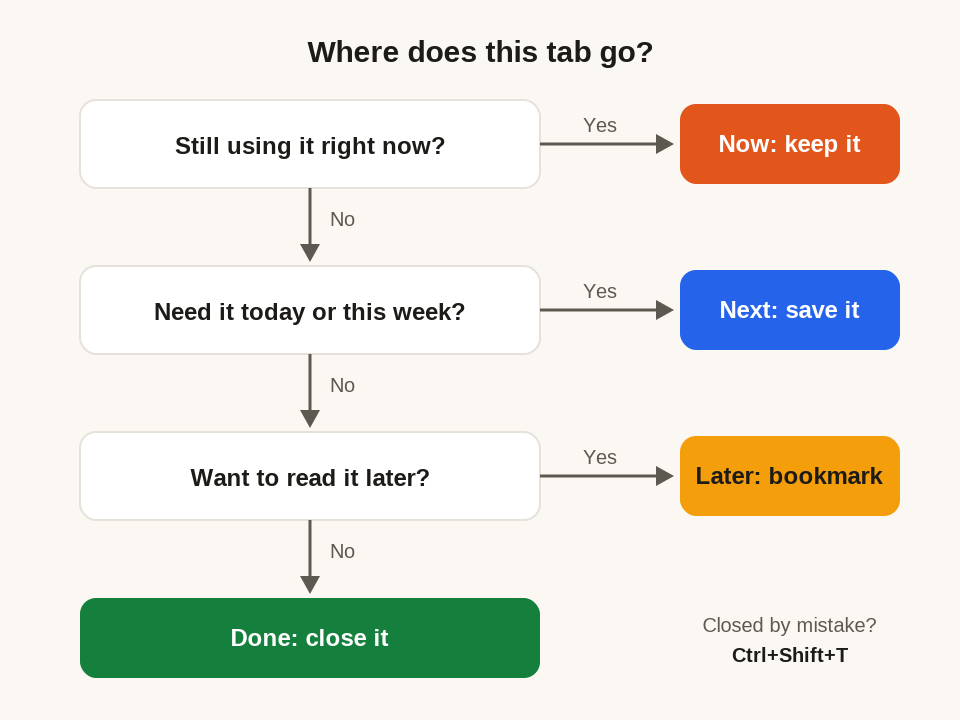
Give every tab one of four homes. You only have to make this decision when a tab has finished its immediate job.
- Now. Only the tabs for the task you are doing at this moment. Try to keep this under about eight, so every tab title is still readable. If you are filing a form, that's the form, the document you are copying from and perhaps a help page.
- Next. Tasks for later today or this week. Move each task's tabs into its own window, or save them as a group you can reopen with one click. One window per task is much easier to face than one window with everything.
- Later. Things to read or watch when you have time. Put them in a single bookmarks folder called "Read later", or your browser's reading list. Once a week, go through it: read, keep or delete.
- Done. Everything else. Close it. If you need it again, your history has it, and
Ctrl+Shift+Tbrings back the last tab you closed.
The trick is that "Next" and "Later" do the reminder job that open tabs were doing, without the memory cost or the clutter. Once you trust them, closing tabs stops feeling risky.
The five-minute daily tidy
At the end of the day, or before lunch if you open a lot of tabs, run through this:
- Close the obvious ones. Search results you have finished with, pages you have already read, finished payments, old cricket scores.
- Close duplicates. Look for the same site open twice and keep one.
- Sort the rest. Anything for tomorrow goes to Next. Anything to read goes to Later.
- Finish or save half-done forms. Either submit, save a draft on the site, or note what you need to come back to. Many forms log you out anyway after a while, so an open tab isn't keeping your place.
- Restart the browser once a week. It clears out pages that have been slowly using more memory, and lets updates finish installing.
Shortcuts that make it quick
These work in most browsers on Windows and Mac. Learning just the first three makes the daily tidy much faster.
| What it does | Windows | Mac |
|---|---|---|
| Close the current tab | Ctrl+W | Cmd+W |
| Reopen the last closed tab | Ctrl+Shift+T | Cmd+Shift+T |
| Next tab | Ctrl+Tab | Cmd+Option+Right |
| Previous tab | Ctrl+Shift+Tab | Cmd+Option+Left |
| Jump to tab 1 to 8 | Ctrl+1 to Ctrl+8 | Cmd+1 to Cmd+8 |
| Jump to the last tab | Ctrl+9 | Cmd+9 |
| Bookmark all open tabs | Ctrl+Shift+D | Cmd+Shift+D |
Ctrl+Shift+T is the one that removes the fear. Press it again and again to bring back tabs in the order you closed them.
When your computer is already slow
If the fan is loud and everything is sluggish, find the tabs that are actually heavy before you close everything.
- Use your browser's task manager. In many browsers on Windows,
Shift+Escopens a list of tabs and extensions with how much memory and processor time each is using. Close the top few. - Close video and live pages first. Live scores, streams, video calls and maps are usually the heaviest.
- Check your extensions. Many extensions run in the background too. Remove any you don't use.
- Don't keep sleeping tabs "just in case". A sleeping tab uses less memory, but it still clutters your tab strip and your attention.
Examples from a normal week
A student before exams. Now: the syllabus PDF and one chapter's notes. Next: a window for the college portal and fee receipt. Later: the three video lectures a friend suggested, in the Read later folder.
A shopkeeper doing accounts. Now: the GST portal and the sales sheet. Next: a window with the supplier's order page and the bank statement for tomorrow. Later: an article on new UPI features. Done: last week's courier tracking pages.
An office worker. Pinned: email and work chat. Now: the report being written and its data. Next: a saved group for Monday's client meeting. Done: everything from the meeting that just ended.
Tabs in Hunt Browser
Hunt Browser for Windows and Mac has two built-in features that suit this system. Workspaces are your "Next" pile: open the tabs for one job, choose Hunt button → Workspaces, and save them with a name such as "Office" or "Exam revision". Later, open the workspace and all its tabs come back. RAM, CPU and network limits, also under the Hunt button, put busy background tabs to sleep so the computer stays quick, and the tabs wake up when you click them. Both are free and work on your computer, with no account.
The sidebar also keeps WhatsApp, Telegram and Instagram beside your page instead of in tabs of their own, which can take a few permanent tabs off your tab strip.
Questions
How many tabs is too many?
There is no single number. It depends on your computer's memory and on what the tabs are. A useful rule is that if you can no longer read the tab titles, or your computer is slowing down, you have more than you can use. Keeping the tabs for your current task under about eight keeps them readable.
Do sleeping tabs still use memory?
Very little. Most browsers now free the memory of tabs you haven't used for a while and reload them when you click back. They still take up space in your tab strip, and any unsaved typing in them may be lost when they reload, so finish or save forms before you leave them.
I closed a tab by mistake. How do I get it back?
Press Ctrl+Shift+T on Windows or Cmd+Shift+T on a Mac. Each press reopens the next most recently closed tab. For something closed days ago, open your history with Ctrl+H on Windows or Cmd+Y on a Mac and search for it.
Is it better to use bookmarks or keep tabs open?
Use bookmarks for things you want to keep or read later, and tabs for what you are working on now. A tab kept open for a week is doing a bookmark's job while using memory. A "Read later" folder that you clear out weekly works better for most people.
Sources
- Overcoming tab overload, Carnegie Mellon University (May 2021)
- Multitasking: switching costs, American Psychological Association
- Keyboard shortcuts for a popular browser, official help page
- Memory saver: how sleeping tabs free memory, official help page
- Workspaces, Hunt Browser features
- RAM, CPU and network limits, Hunt Browser features
Hunt Browser blocks ads and trackers before they load, and has Hunt AI built in. Free for Windows and Mac.
Keep reading
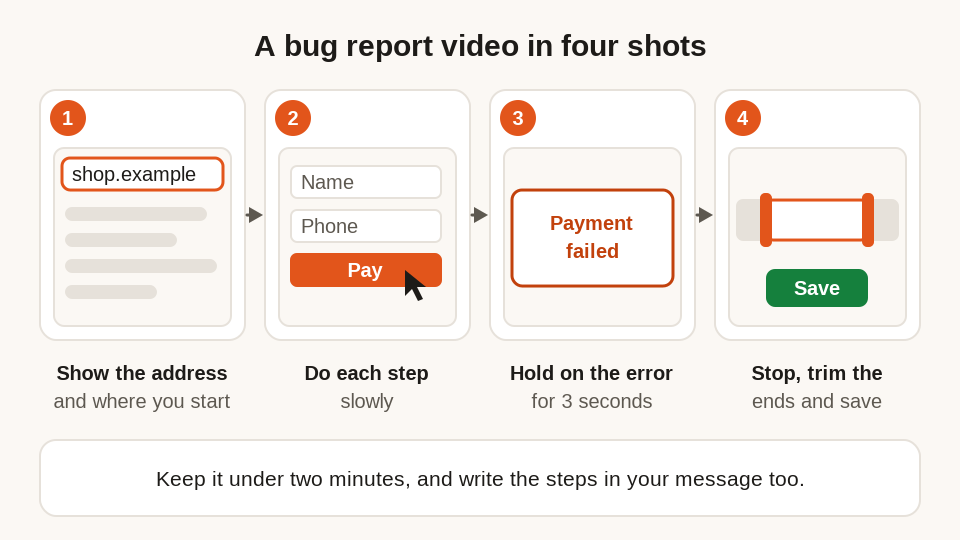
How to record your screen for a tutorial or a bug report
Record your screen on Windows, Mac, Android or iPhone with built-in tools, hide private details first, and make a clear tutorial or bug report video.
18 November 2026 · 8 min read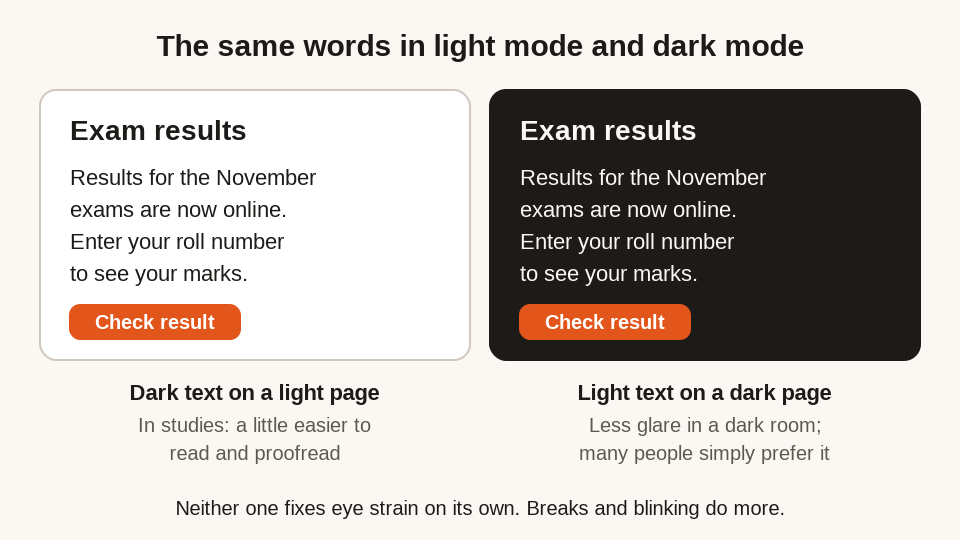
Dark mode and eye strain: what helps and what doesn't
Does dark mode protect your eyes? What studies say about reading, eye strain, blue light, sleep and battery, and the habits that make a real difference.
17 November 2026 · 10 min read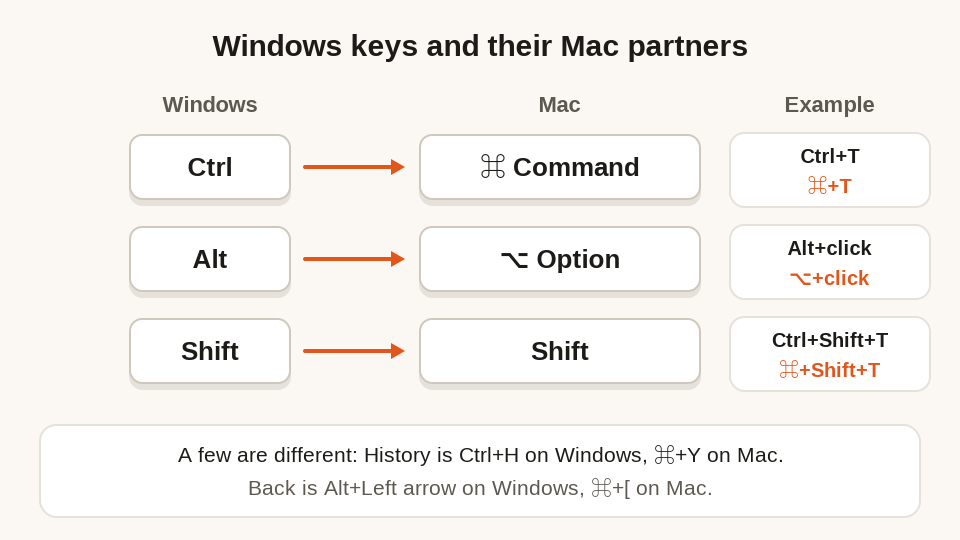
30 browser keyboard shortcuts that save time every day
Thirty keyboard shortcuts for tabs, the address bar, finding text and zoom, with Windows and Mac keys side by side and an easy way to learn them.
15 November 2026 · 8 min read