

 Blog
30 browser keyboard shortcuts that save time every day
Thirty keyboard shortcuts for tabs, the address bar, finding text and zoom, with Windows and Mac keys side by side and an easy way to learn them.
Watch someone who spends all day at a computer, say an accountant filing GST returns or a student in a college computer lab. The quick ones barely touch the mouse when they use the browser. They close a tab, bring it back, jump to the address bar and search the page in the time it takes the rest of us to find the right button.
It isn't talent. Your browser comes with dozens of keyboard shortcuts, and about thirty of them cover nearly everything you do in a day. Learn five this week and five the next, and within a month your fingers will do them without thinking.
Every shortcut below works in Hunt Browser and in the other browsers built on the same open-source engine, on Windows and on Mac. We checked each one against that engine's official list of shortcuts.
One rule covers most Windows and Mac keys
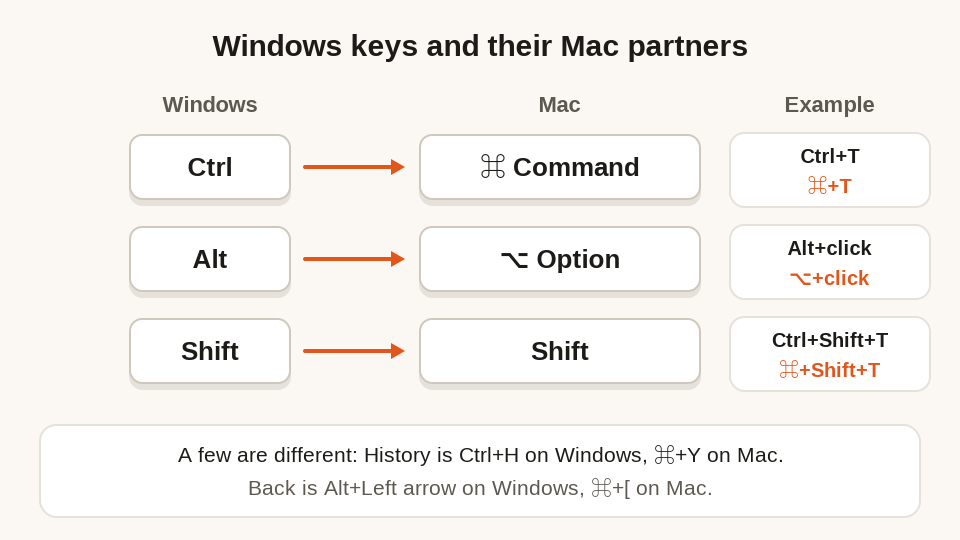
If you know a shortcut on Windows, you already know most of the Mac version. Ctrl on Windows usually becomes ⌘ Command on a Mac, and Alt becomes ⌥ Option. Shift stays the same.
There are a few exceptions, and the tables point them out. History is Ctrl+H on Windows but ⌘+Y on a Mac. Going back a page is Alt+Left arrow on Windows but ⌘+[ on a Mac.
How to read the tables: "Ctrl+Shift+T" means hold Ctrl and Shift down together, then tap T. "Ctrl and +" means hold Ctrl and tap the plus key. On Windows you can also use Ctrl and the = key, so you don't need Shift.
Tabs and windows (9 shortcuts)
These are the ones to learn first, because tabs are where most clicking happens.
| What it does | Windows | Mac |
|---|---|---|
| Open a new tab | Ctrl+T | ⌘+T |
| Close the current tab | Ctrl+W | ⌘+W |
| Reopen the tab you just closed | Ctrl+Shift+T | ⌘+Shift+T |
| Go to the next tab | Ctrl+Tab | ⌘+Option+Right arrow |
| Go to the previous tab | Ctrl+Shift+Tab | ⌘+Option+Left arrow |
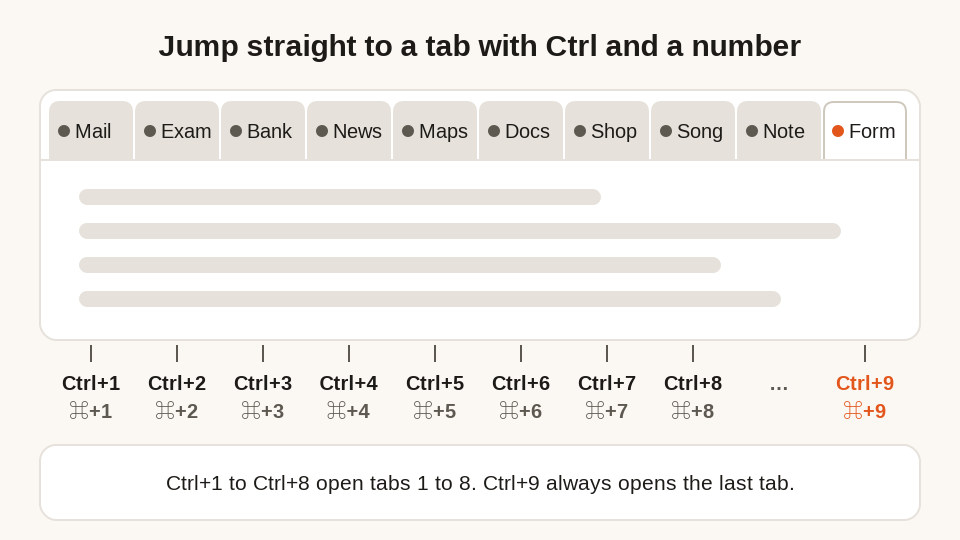
| Go to tab 1 to 8 | Ctrl+1 to Ctrl+8 | ⌘+1 to ⌘+8 |
| Go to the last tab | Ctrl+9 | ⌘+9 |
| Search your open tabs | Ctrl+Shift+A | ⌘+Shift+A |
| Open a private window | Ctrl+Shift+N | ⌘+Shift+N |
Ctrl+Shift+T is the one people thank us for. Closed the tab with your half-filled exam form or the PNR you were checking? Press it and the tab comes back. Press it again and the tab before that comes back, in the order you closed them.
The number shortcuts are handy when you keep the same few tabs open every day. If your mail is always the first tab and your bank always the third, Ctrl+1 and Ctrl+3 take you there instantly. Ctrl+9 always means the last tab, however many you have open.
Search your open tabs (Ctrl+Shift+A) opens a small list of every tab with a search box. Type a word from a page's title, like "results" or "invoice", and press Enter to jump to it. If you tend to have thirty tabs open, this one is worth more than all the others put together.
Moving around and the address bar (7 shortcuts)
| What it does | Windows | Mac |
|---|---|---|
| Go back a page | Alt+Left arrow | ⌘+[ |
| Go forward a page | Alt+Right arrow | ⌘+] |
| Jump to the address bar | Ctrl+L, Alt+D or F6 | ⌘+L |
| Start a web search from anywhere | Ctrl+K or Ctrl+E | ⌘+Option+F |
| Add www. and .com to a name | Type the name, then Ctrl+Enter | Type the name, then Ctrl+Return |
| Reload the page | F5 or Ctrl+R | ⌘+R |
| Reload, ignoring the saved copy | Ctrl+Shift+R or Shift+F5 | ⌘+Shift+R |
Ctrl+L selects everything in the address bar, so you can type a new address straight away. It's also the quickest way to copy a page's link for WhatsApp or email: Ctrl+L, then Ctrl+C.
Reload, ignoring the saved copy is worth knowing. Browsers keep copies of pages and pictures so sites load faster. Sometimes that copy goes stale, and a results page or a notice board still shows yesterday's version after you reload. Ctrl+Shift+R asks the website for everything fresh.
The www. and .com trick only helps with sites that end in .com. For a site ending in .in or .gov.in, type the full address.
Reading a page (8 shortcuts)
| What it does | Windows | Mac |
|---|---|---|
| Find a word on the page | Ctrl+F or F3 | ⌘+F |
| Go to the next match | Ctrl+G | ⌘+G |
| Zoom in | Ctrl and + | ⌘ and + |
| Zoom out | Ctrl and - | ⌘ and - |
| Back to normal size | Ctrl+0 | ⌘+0 |
| Scroll down one screen | Space or Page Down | Space |
| Scroll up one screen | Shift+Space or Page Up | Shift+Space |
| Open a link in a background tab | Ctrl + click the link | ⌘ + click the link |
Ctrl+F is the single most useful shortcut on this list. It works on web pages and on PDFs opened in the browser. Looking for your roll number in a 300-page merit list? Press Ctrl+F, type the number, and the browser highlights it. Ctrl+G moves to the next match, and Ctrl+Shift+G (⌘+Shift+G on a Mac) moves back.
Zoom helps more people than you'd think. If a government form has tiny text, or you're helping a parent read their screen, Ctrl and + makes everything bigger without blurring it. Ctrl+0 brings it back to normal.
Ctrl + click opens a link in a new tab without leaving the page you're on. It's ideal for search results or a shopping list: Ctrl + click five products, then read them one by one.
Space to scroll works only when you're not typing in a box. If the page doesn't move, click on some plain text first.
Saving, history and housekeeping (6 shortcuts)
| What it does | Windows | Mac |
|---|---|---|
| Bookmark this page | Ctrl+D | ⌘+D |
| Open your history | Ctrl+H | ⌘+Y |
| Open your downloads | Ctrl+J | ⌘+Shift+J |
| Clear browsing data | Ctrl+Shift+Delete | ⌘+Shift+Delete |
| Print, or save as a PDF | Ctrl+P | ⌘+P |
| See what each tab is using | Shift+Esc | No shortcut; use the menu |
Ctrl+J saves you hunting through folders after a download. It opens the list of everything you've downloaded, with a link to show each file in its folder.
Ctrl+P isn't only for printers. In the print window, change the destination to "Save as PDF" to keep a copy of a payment receipt, a booking or a form you just filled in.
Ctrl+Shift+Delete opens the window for clearing history, cookies and saved files. It's useful on a shared computer at a cyber café or in an office, before you get up and leave.
Shift+Esc opens the browser's task manager on Windows. It lists every tab with the memory and processor time it's using. When your computer suddenly slows down, this tells you which tab to close.
How to learn them without trying hard
Nobody learns thirty shortcuts by reading a list. Here is a plan that works.
- Week 1: Ctrl+T, Ctrl+W, Ctrl+Shift+T, Ctrl+L and Ctrl+F. Write them on a sticky note and put it on the edge of your screen.
- Week 2: Ctrl+Tab, Ctrl+1 to 9 and Ctrl+Shift+A, for moving between tabs.
- Week 3: Ctrl and +, Ctrl+0, Space, and Ctrl + click.
- Week 4: whatever is left that suits your work. An accountant might pick Ctrl+P and Ctrl+J; a student might pick Ctrl+Shift+R and Ctrl+D.
The trick is to catch yourself. Each time your hand reaches for the mouse to close a tab, stop and press Ctrl+W instead. After a week or two you'll stop noticing that you're doing it.
A few more in Hunt Browser
Hunt Browser for Windows and Mac adds a few shortcuts of its own for Hunt Tools. Alt+Shift+R starts screen recording, and on any video, Alt+. plays it faster and Alt+, slower. That's handy for lectures and long tutorials. On a Mac, use the Option key for Alt.
Questions
Why doesn't a shortcut work on my laptop?
On many laptops the top row of keys controls brightness and volume first, so F5 or F11 may need the Fn key held down too. Also, some websites, such as online document editors and web mail, use certain key combinations for themselves while you're typing in them. Click on a blank part of the page and try again.
What's the difference between Ctrl+R and Ctrl+Shift+R?
Ctrl+R reloads the page and may reuse files your browser saved earlier, which is faster. Ctrl+Shift+R asks the website for every file again. Use the second one when a page looks broken or out of date, and the first one the rest of the time.
Do these shortcuts work on a phone?
No. They're for computers with a keyboard. On phones, browsers use taps and gestures instead.
Are these shortcuts the same in every browser?
Most of the basics, like Ctrl+T, Ctrl+W and Ctrl+F, are the same almost everywhere. Some less common ones differ between browsers. The ones on this page are checked for browsers built on the same open-source engine as Hunt Browser.
Can I see what a shortcut does before I press it?
Yes. Open your browser's menu: many items show their shortcut next to their name. It's a good way to find one you need for a task you do often.
Sources
Hunt Browser blocks ads and trackers before they load, and has Hunt AI built in. Free for Windows and Mac.
Keep reading
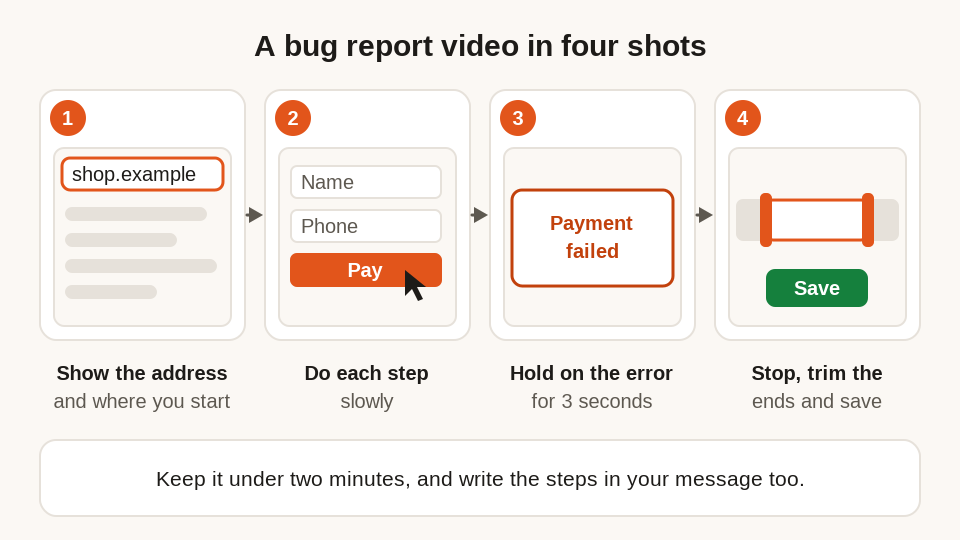
How to record your screen for a tutorial or a bug report
Record your screen on Windows, Mac, Android or iPhone with built-in tools, hide private details first, and make a clear tutorial or bug report video.
18 November 2026 · 8 min read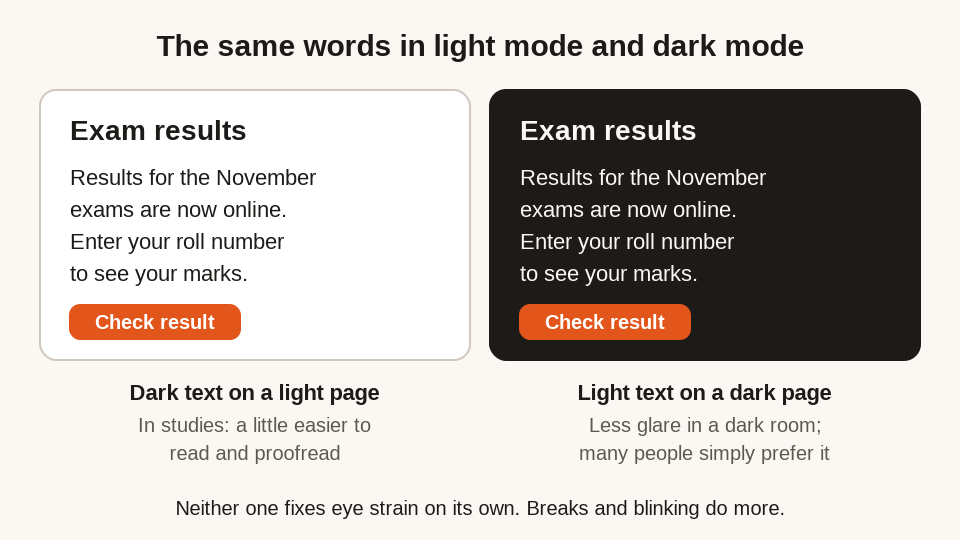
Dark mode and eye strain: what helps and what doesn't
Does dark mode protect your eyes? What studies say about reading, eye strain, blue light, sleep and battery, and the habits that make a real difference.
17 November 2026 · 10 min read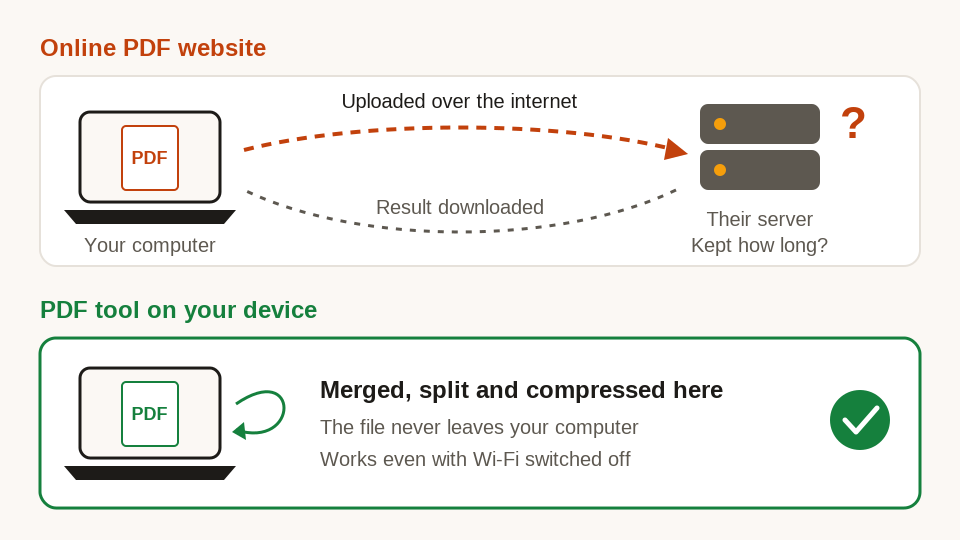
Merge, split and compress PDFs without uploading them anywhere
Free PDF websites upload your Aadhaar, PAN and bank statements to their servers. How to merge, split, compress and sign PDFs on your own computer instead.
14 November 2026 · 9 min read