

 Blog
Merge, split and compress PDFs without uploading them anywhere
Free PDF websites upload your Aadhaar, PAN and bank statements to their servers. How to merge, split, compress and sign PDFs on your own computer instead.
Meena was applying for a home loan from her flat in Coimbatore. The bank's portal wanted one PDF with her Aadhaar, PAN and three months of salary slips, under 2 MB. She searched "merge PDF free", picked the first site, uploaded all five files, and had her PDF in a minute.
It worked. It also meant that copies of her identity documents and her salary had just been sent to a company she knew nothing about, on servers she couldn't see, in a country she didn't know. Many of these sites promise to delete files after an hour or two. You are trusting that promise with documents that are very hard to change if they leak.
The good news is that you rarely need to upload anything. Your computer can merge, split, compress and sign PDFs by itself. This guide shows how, with tools you already have and a few habits that keep ID documents safer.
What happens when you use a PDF website
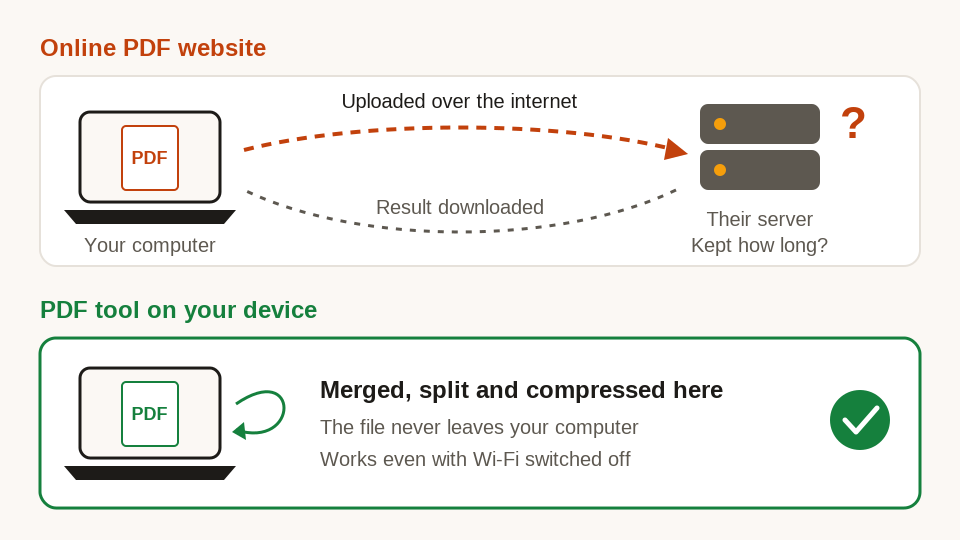
Most free PDF websites work the same way. Your file travels over the internet to their server, their software does the job, and you download the result. The work happens on their computer, not yours.
For a college timetable, that doesn't matter much. For an Aadhaar card, a PAN card, a passport, a bank statement or a rent agreement, it matters a lot. These documents carry your name, date of birth, address, photo, signature and ID numbers, which is exactly what someone needs to open accounts or take loans in your name.
Some websites are run carefully and do delete files. The problem is that you can't check. Fake ones exist too: in March 2025 the FBI's Denver field office warned that criminals were running free online file-converter sites that handed back a working file while slipping malware onto the computer and harvesting personal details from what people uploaded.
How to tell if a PDF tool works on your device
A tool that runs on your own computer never needs to send your file anywhere. Some websites also work this way, processing files inside your browser. Two quick checks tell you which kind you have:
- Read what it says. Tools that work on your device usually say so clearly, for example "files are never uploaded". Tools that upload usually mention servers, or deleting files after a time.
- Try it offline. Open the tool, then turn off your Wi-Fi or mobile data and try it with a harmless file. If it still works, the processing is happening on your computer. If it fails, it was sending files away.
What your computer can already do
You may not need any new tool at all.
Split or extract pages with your browser's Print button
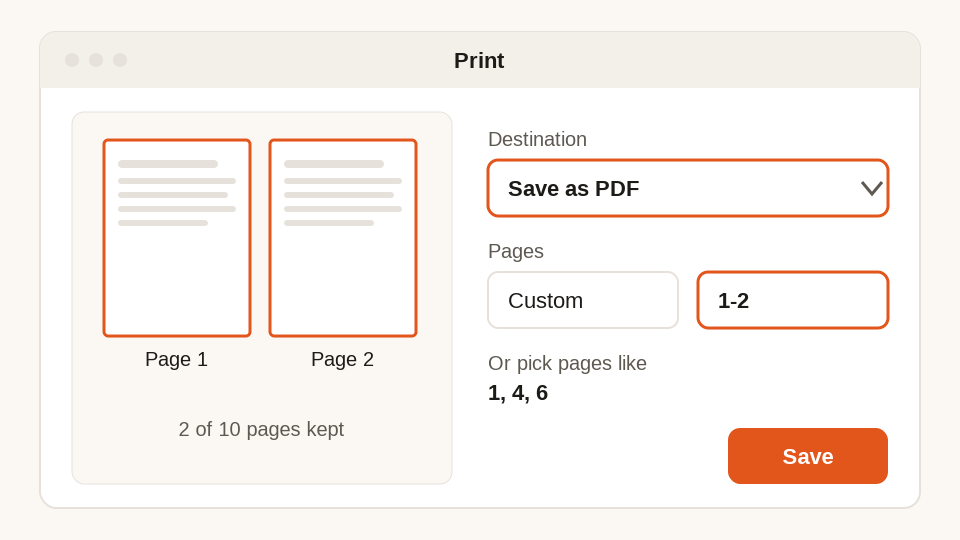
Most browsers can open a PDF, and their Print window can save a copy as a new PDF. That makes it an easy way to pull out just the pages you need, say the first two pages of a ten-page bank statement.
- Open the PDF in your browser. Drag it onto a browser window if it opens somewhere else.
- Press
Ctrl+Pon Windows orCmd+Pon a Mac. - Set the printer or destination to Save as PDF.
- Under Pages, choose custom pages and type the ones you want, for example
1-2or1, 4, 6. - Press Save and give the new file a clear name.
On Windows
Windows comes with a Print to PDF printer. Anything you can print, including photos of documents, can be saved as a PDF from the Print window. Windows doesn't include a simple tool for merging PDFs, so for merging you need a PDF tool that runs on your computer.
On a Mac
The Preview app that comes with every Mac can merge and compress PDFs:
- Open both PDFs in Preview and choose View → Thumbnails in each.
- Drag page thumbnails from one file's sidebar into the other's. Drop them where you want them, and drag to reorder.
- To shrink a file, choose File → Export, and pick Reduce File Size from the Quartz Filter menu. Check the result is still readable, because quality drops.
Preview saves changes automatically, so make a copy first with File → Duplicate if you want to keep the original.
Getting a PDF under a size limit
Online forms often set a size limit, such as 200 KB, 1 MB or 2 MB, printed next to the upload button. It helps to know why some PDFs are big.
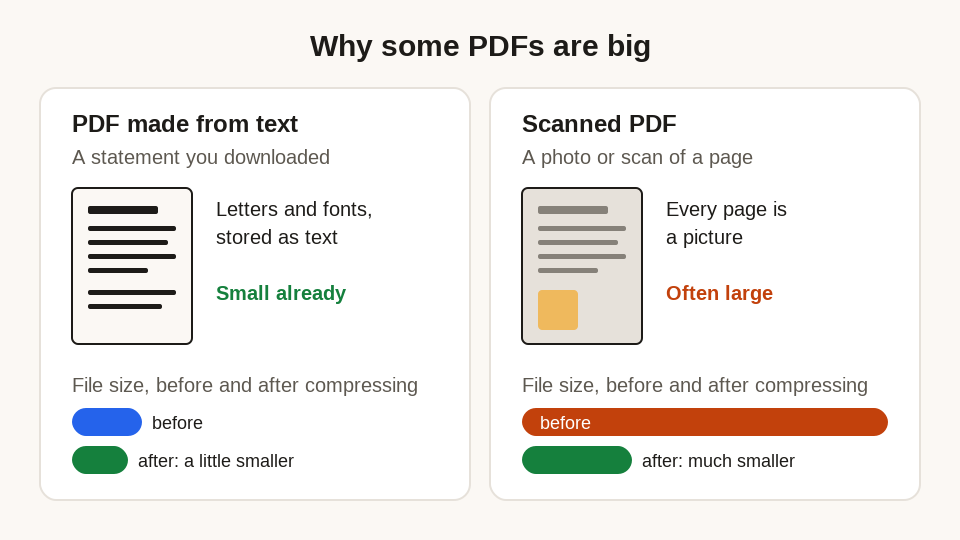
- PDFs made from text, such as a statement downloaded from your bank's website, are usually small already. Compressing them helps only a little.
- Scanned PDFs and phone photos are really pictures of pages. They are often several times larger, and they shrink a lot when the pictures are saved at a lower quality.
So, in order:
- Remove pages you don't need. A blank back side or an extra page of terms adds size for nothing.
- Scan smaller to begin with. If your scanner or scanning app has settings, choose grayscale instead of colour for black-and-white documents, and a lower resolution. A page that reads clearly on screen is usually enough for an online form.
- Compress, then check. After compressing, zoom in on the smallest text, the ID number and any signature. If you can't read it, neither can the officer checking your form. Try a lighter setting.
- Split if the form allows it. Some forms accept several files with a limit for each one. Uploading three small files can be easier than one large one.
Keeping your ID documents safer
A few habits reduce the harm if a copy ever ends up in the wrong place:
- Use a masked Aadhaar where the full number isn't needed. From the myAadhaar website you can download a masked e-Aadhaar, which hides the first eight digits and shows only the last four. When an organisation only needs to see your identity, ask whether a masked copy is acceptable before you send the full one.
- Know the e-Aadhaar password. The e-Aadhaar PDF from UIDAI is password protected. The password is the first four letters of your name in capitals followed by your year of birth, so someone named Kavya born in 1998 would type
KAVY1998. If you merge it with other files, the new PDF may not keep that protection, so treat the merged copy carefully. - Write the purpose on the copy. Adding text such as "For home loan application at [bank], 14 Nov 2026" across a page makes the copy less useful for anything else.
- Clean up afterwards. Delete working copies from your Downloads folder once the form is submitted, and don't keep ID scans in your email's sent folder longer than you need.
PDF tools in Hunt Browser
Hunt Browser for Windows and Mac has PDF tools built in. Choose Hunt button → PDF tools, or open them while viewing a PDF. You can merge PDFs and photos or scans into one file, drag pages into order, rotate or delete them, split out the pages you need, sign, and add text in English or Indian languages such as Hindi and Telugu. Compress rewrites a PDF more compactly, and Compress more shrinks scanned pages a lot for forms with a size limit.
Your files are opened and saved on your computer and are never uploaded, so the tools are safe to use for ID proofs and agreements. They are free and need no account.
Questions
Is it safe to use free online PDF websites?
For documents with nothing personal in them, it is usually fine. For ID proofs, bank statements, salary slips, medical reports and signed agreements, it is safer to use a tool that works on your own computer, because you can't check what happens to files once they are uploaded.
Why is my scanned PDF so large?
A scanned page is really a photo of the page, saved inside the PDF. High resolution and colour make that photo large. Scanning black-and-white documents in grayscale at a lower resolution, or compressing the scan afterwards, usually brings the size down a lot.
Can I merge my Aadhaar and PAN into one PDF?
Yes. Use a PDF tool on your computer, add both files, put them in the order the form asks for, and save. If one is the password-protected e-Aadhaar, you will need its password to open it first. Check the merged file before you upload it.
Will compressing a PDF make it unreadable?
It can, if you compress too much. Light compression usually keeps text sharp. Heavy compression of scanned pages makes them blurrier. Always zoom in on the smallest text and any ID numbers after compressing, and use a lighter setting if they are hard to read.
Sources
- Combine PDFs in Preview on Mac, official help page
- Reduce the size of a PDF in Preview on Mac, official help page
- What is the password of e-Aadhaar? UIDAI
- What is masked Aadhaar? UIDAI
- FBI warnings are true: fake file converters do push malware, BleepingComputer (March 2025)
- eSign, online electronic signature service, Controller of Certifying Authorities
- PDF tools, Hunt Browser features
Hunt Browser blocks ads and trackers before they load, and has Hunt AI built in. Free for Windows and Mac.
Keep reading
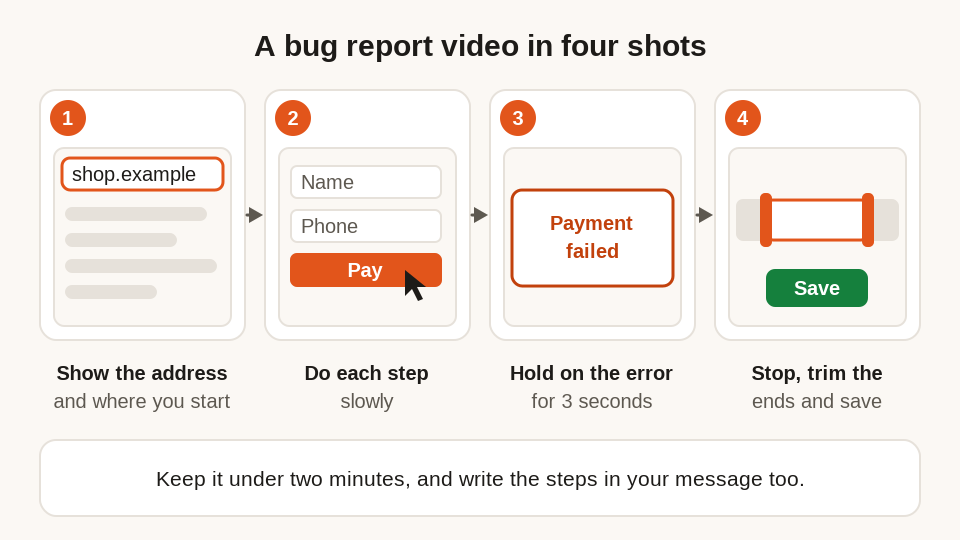
How to record your screen for a tutorial or a bug report
Record your screen on Windows, Mac, Android or iPhone with built-in tools, hide private details first, and make a clear tutorial or bug report video.
18 November 2026 · 8 min read
Dark mode and eye strain: what helps and what doesn't
Does dark mode protect your eyes? What studies say about reading, eye strain, blue light, sleep and battery, and the habits that make a real difference.
17 November 2026 · 10 min read
30 browser keyboard shortcuts that save time every day
Thirty keyboard shortcuts for tabs, the address bar, finding text and zoom, with Windows and Mac keys side by side and an easy way to learn them.
15 November 2026 · 8 min read