

 Blog
How to record your screen for a tutorial or a bug report
Record your screen on Windows, Mac, Android or iPhone with built-in tools, hide private details first, and make a clear tutorial or bug report video.
Ravi works in accounts at a small textile firm in Surat. The billing software keeps showing an error when he saves an invoice, and the support team keeps replying "Please share the steps". Meanwhile Lakshmi, a teacher in Madurai, wants to show her students' parents how to download a report card from the school portal, without explaining it on forty separate phone calls.
Both need the same thing: a short recording of their screen. A 90-second video shows what happened more clearly than a page of typed steps, and people can watch it as many times as they need.
You probably don't need to install anything. Windows, Mac, Android and iPhone all have a screen recorder built in. This guide covers how to use them, what to hide before you press record, and how to make a recording that actually gets your problem fixed or your lesson understood.
The recorder you already have
| Device | How to start | Sound | How to stop |
|---|---|---|---|
| Windows 11 | Press Windows key+Shift+R (Snipping Tool), drag over the area, then Start | Recent versions have switches for the microphone and computer sound | Press Stop in the Snipping Tool bar |
| Mac | Press Shift+Command+5, choose Record Entire Screen or Record Selected Portion, then Record | Options → Microphone; choose None for silence | Click the Stop button in the menu bar |
| Android | Swipe down twice from the top, tap Screen record, choose options, then Start | Choose whether to record audio, and whether to show touches | Swipe down and tap the screen recorder notification |
| iPhone | Open Control Centre, tap the Record button and wait for the 3-second countdown | Touch and hold Record, then turn on the microphone | Tap the red indicator at the top, then Stop |
A few notes from each one's help pages:
- Windows 11: after you stop, the Snipping Tool shows the recording so you can save it as it is or edit it further.
- Mac: recent versions of macOS also offer a "Record Selected Window" option. Options → Save to sets the folder, and the file's name starts with "Screen Recording" and the date.
- Android: if Screen record isn't in your quick settings, tap Edit and drag it in. Menus differ slightly between phone makers. The finished video is in your gallery or photos app.
- iPhone: if the Record button isn't in Control Centre, add it first. Recordings go to the Photos app.
On Windows 10, the Snipping Tool doesn't record video. There, a browser-based recorder like the one in Hunt Browser (see below) is the simplest option.
Before you press record
Screen recordings capture everything on the screen, including the things you forgot were there. Take one minute to tidy up first. It's the most important step in this whole article.
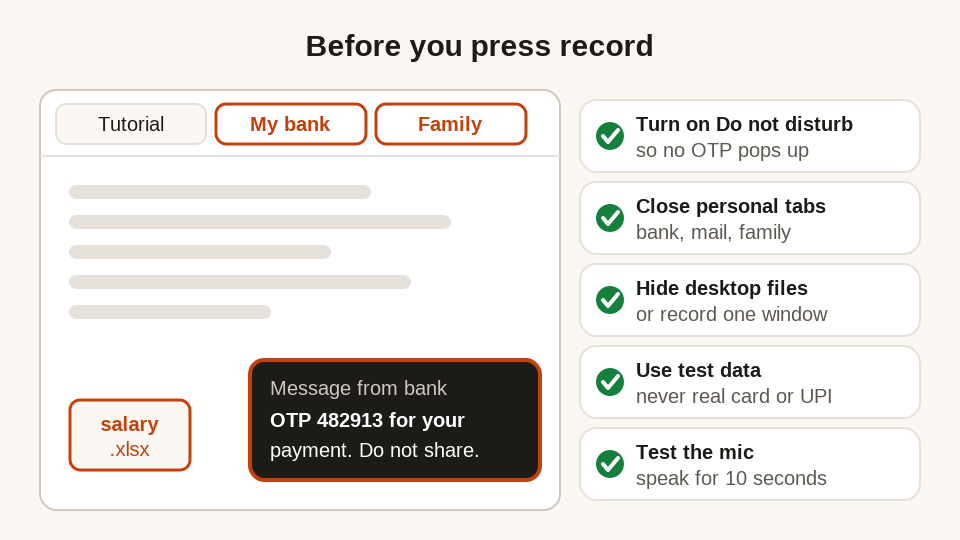
- Turn on Do not disturb (called Focus on some devices). Otherwise a WhatsApp message or a bank SMS with an OTP can pop up in the middle of your video.
- Close personal tabs like your bank, email and family chats. Better still, open a fresh browser window with only the tabs you need.
- Record one window or one tab instead of the whole screen if you can. Then your desktop files, taskbar and other apps stay out of the picture.
- Use test data. Never type a real card number, UPI PIN, Aadhaar number or password on camera. If the software has a demo or test account, use it. If you must show a real form, blur the details afterwards or retype them with dummy values.
- Make the text readable. Press Ctrl and + (⌘ and + on a Mac) to zoom the page to about 125%. Viewers often watch on a phone, and small text turns into a blur.
- Test your microphone. Record ten seconds of yourself talking and play it back. Sit close to the microphone and switch off the fan if it's noisy.
Recording a bug report that gets fixed
Support teams fix problems they can see happen. A good bug video lets them watch the problem from the first click to the error, without guessing what you did. Keep it short: under two minutes is ideal.
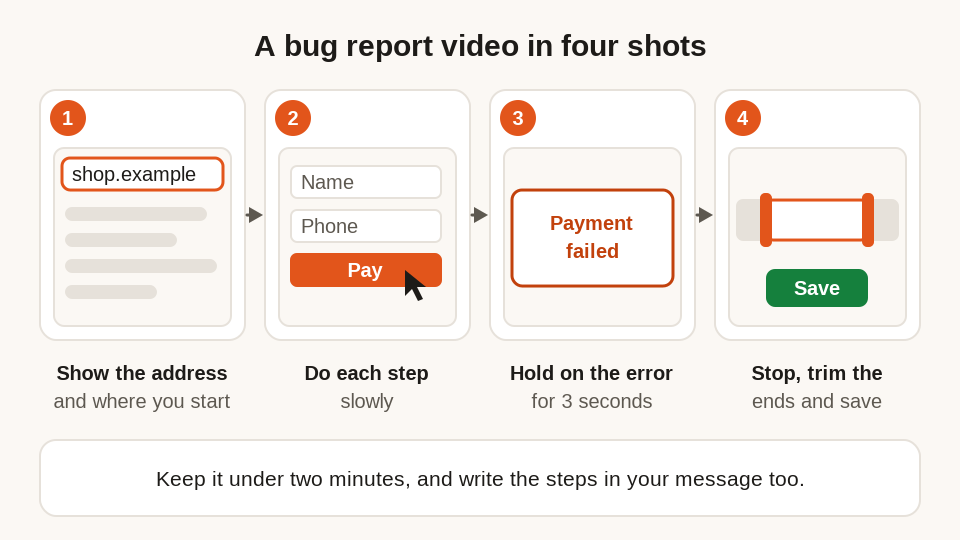
- Start from a known place. Begin on the page or screen where the problem starts, with the address bar or the app's name visible.
- Do each step slowly. Move the mouse calmly and pause a second before each click so the viewer can see what you're clicking.
- Say what you're doing, if you're recording sound. "Now I'm clicking Save on invoice 2047" is all it takes.
- Hold on the error for three seconds. Let the full error message stay on screen. If there's an error code, read it out.
- Stop and trim the dead seconds at the start and end.
Then send the video along with a short written note, because the person fixing it may need to search or copy text:
- what you expected to happen, and what happened instead;
- the steps, numbered;
- the exact error message;
- the date and time it happened;
- your device, operating system and browser version (in most browsers, it's on the About page in the menu).
Ravi's note might say: "Expected: invoice 2047 saves. Actual: 'Error 500' after clicking Save. Happens every time on invoices with more than 10 lines. Tuesday 11:40 am, Windows 11, latest browser version." With that and a one-minute video, the support team has everything they need.
Recording a tutorial people finish
A tutorial is different. Here, the viewer is copying you step by step, so clarity matters more than speed.
- One task per video. "How to download your report card" is better than "Everything about the school portal". Three short videos beat one long one.
- Write three or four lines first. Note what you'll say at each step. You don't need a full script; just enough to stop you saying "umm" while you find the next button.
- Say where you're going before you click. "Next, click Results at the top right." The viewer needs a second to find it on their own screen.
- Use the language your viewers use. If Lakshmi's parents are more comfortable in Tamil, recording in Tamil will help them more than polished English.
- Do a practice run. Many people record two or three takes and keep the best one. That's normal.
- Aim for 2 to 5 minutes. If it's getting longer, split it.
Trimming, saving and sharing
Almost every recorder lets you trim the start and end, which is usually all the editing a screen recording needs. Cut the part where you reach for the Stop button.
For sharing, a resolution of 720p is enough for most screen recordings and keeps the file smaller than full HD. If the file is too big to send directly in a chat app, upload it to your cloud storage and share a link, setting it so only people with the link can view it.
Before you send, watch the whole recording once. It's the last chance to spot an OTP, a phone number or a private tab that slipped in.
Recording in Hunt Browser
If you use Hunt Browser on Windows or Mac, screen recording is built in. Press Alt+Shift+R (Option+Shift+R on a Mac), or click the Hunt button and choose Record the screen. You can record a single tab, a window or the whole screen, with your voice, then pause, trim the ends and save. Recordings stay on your computer until you choose to share them. It works on Windows 10 too.
Questions
Can I record my screen without installing any app?
Yes. Windows 11 has it in the Snipping Tool (Windows key+Shift+R), a Mac has it under Shift+Command+5, and Android and iPhone have a screen record button in their quick settings or Control Centre. Some browsers, including Hunt Browser, have one built in too.
Why is my screen recording silent?
Usually the microphone wasn't switched on before you started. On a Mac, check Options → Microphone; on an iPhone, touch and hold the Record button and turn on the microphone; on Android, choose audio in the options before you start. Also check that the right microphone is selected if you use a headset.
How do I hide an OTP or password in a recording?
The best way is not to show it: turn on Do not disturb, use test data and close private tabs before you start. If something private slips in, trim that part out or record again. Blurring later is possible with a video editor, but it's easy to miss a frame.
Is it legal to record a video call or a meeting?
Rules differ by situation, so this isn't legal advice. As basic courtesy and good practice, always tell people and ask before you record them, and only share the recording with people they've agreed to.
Sources
- Use Snipping Tool to capture screenshots and recordings (Windows help)
- Take screenshots or screen recordings on Mac (Mac User Guide)
- How to record the screen on your Mac (Mac help)
- Screen recording with the Snipping Tool (NSW Department of Education guide)
- Take a screenshot or record your screen on Android (Android help)
- Record the screen on your iPhone or iPad (iPhone help)
- Screen recording in Hunt Browser
Hunt Browser blocks ads and trackers before they load, and has Hunt AI built in. Free for Windows and Mac.
Keep reading
Dark mode and eye strain: what helps and what doesn't
Does dark mode protect your eyes? What studies say about reading, eye strain, blue light, sleep and battery, and the habits that make a real difference.
17 November 2026 · 10 min read
30 browser keyboard shortcuts that save time every day
Thirty keyboard shortcuts for tabs, the address bar, finding text and zoom, with Windows and Mac keys side by side and an easy way to learn them.
15 November 2026 · 8 min read
Merge, split and compress PDFs without uploading them anywhere
Free PDF websites upload your Aadhaar, PAN and bank statements to their servers. How to merge, split, compress and sign PDFs on your own computer instead.
14 November 2026 · 9 min read