

 Blog
Hunt blog › Everyday India online
Setting up safe browsing for children at home
A calm, layer-by-layer setup for children's browsing at home, from the Wi-Fi router and phone to the browser and house rules, and what to do if things go wrong.
Meena's son Arjun is nine. He uses her phone after school for homework videos and a cricket game. One evening she found him quiet and upset: an autoplaying video had led to another, and then to something violent he didn't understand. Nothing terrible had happened, but Meena realised she had never set up anything at all.
Most parents in India are in the same place. The family phone or laptop was set up for adults, and children borrow it. The good news is that a safer setup takes about an hour, costs nothing, and doesn't require you to be "good with technology".
This guide works in layers, from the home Wi-Fi to the conversation at the dinner table. No single layer is perfect. Together they catch most problems, and they make it easy for a child to come to you when something slips through.
Think in layers
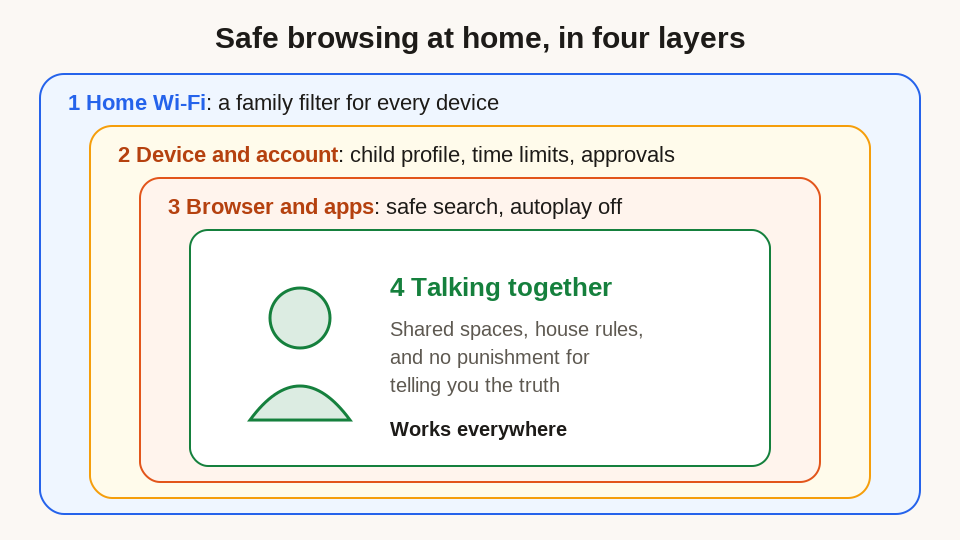
Filters fail, children grow, and friends' phones exist. So instead of looking for one perfect app, use several simple layers, each catching what the one before missed.
- The home Wi-Fi can block adult and harmful sites for every device at once.
- The device and account decide which apps can be installed, for how long, and what can be bought.
- The browser and apps control search results, autoplay and what is saved.
- Talking together is the layer that works everywhere, including at a friend's house.
Layer 1: a family filter on your home Wi-Fi
Every time you open a website, your device first looks up its address using a service called DNS, a sort of phone book for the internet. Some DNS services are made for families and simply refuse to look up adult and malware sites.
For example, the free "1.1.1.1 for Families" service blocks malware and adult content when you use the addresses 1.1.1.3 and 1.0.0.3. You enter these in your Wi-Fi router's settings, in the DNS section, and every phone, laptop and TV on your Wi-Fi uses them. The router's admin page address and password are usually printed on a sticker under the router, or your internet provider can help.
Two limits to know. A filter on the Wi-Fi does nothing when a phone switches to mobile data. And a determined teenager can change the setting on their own device. That is why this is the first layer, not the only one.
Layer 2: the device and the child's account
The single most useful step is to give your child their own account or profile, instead of letting them use yours. Your account has your email, your saved passwords, your payment apps and your browsing history. Theirs should have none of that.
On a shared computer, create a separate user account for your child in the computer's settings, without administrator rights. They can't install programs or change settings without you.
On an Android phone or tablet, open Settings and look for Digital Wellbeing & parental controls (the name varies a little by phone and Android version). From there you can set up a supervised child account, approve app downloads, set daily screen time and see which apps are used.
On an iPhone or iPad, open Settings and look for Screen Time or your Family settings. You can set downtime, app limits and content restrictions, and choose to limit adult websites. For children under 18 in a family group, that website limit is on by default.
Set a passcode for these controls that your child doesn't know, and that isn't the same as the phone's unlock code.
Layer 3: the browser and apps
Small settings in the browser and apps remove a lot of accidental exposure.
- Turn on safe search in your search engine's settings, and in the settings of video apps. Most offer a restricted or kids' mode.
- Turn off autoplay in video apps. Most bad experiences start with "the next video played by itself", as Meena found.
- Make a bookmarks bar of good places: school portals, your state board's e-learning site, a dictionary, a few channels you have watched together. Children use what is one tap away.
- Don't save passwords or cards in the browser on a profile the child uses.
- Be careful with extensions and "free" downloads. Games and video downloaders from unknown sites are a common way for unwanted software to arrive.
- Block pop-ups and notifications from sites in the browser's site settings, so a page can't keep pushing alerts.
Ad blocking helps too. Many problem pages are reached by clicking an ad, and blocking ads and trackers removes most of those doors. Hunt Browser blocks other sites' ads and trackers on every site from the first start. Its own few sponsored items are labelled, and never for adult content. Hunt Browser doesn't have parental controls of its own, so use the device and Wi-Fi layers above as well.
Layer 4: talking together
Every technical layer has gaps. The one that never fails is a child who will tell you when something feels wrong.
Keep screens in shared spaces for younger children, such as the living room, rather than behind a closed door. It is easier to notice and easier to talk.
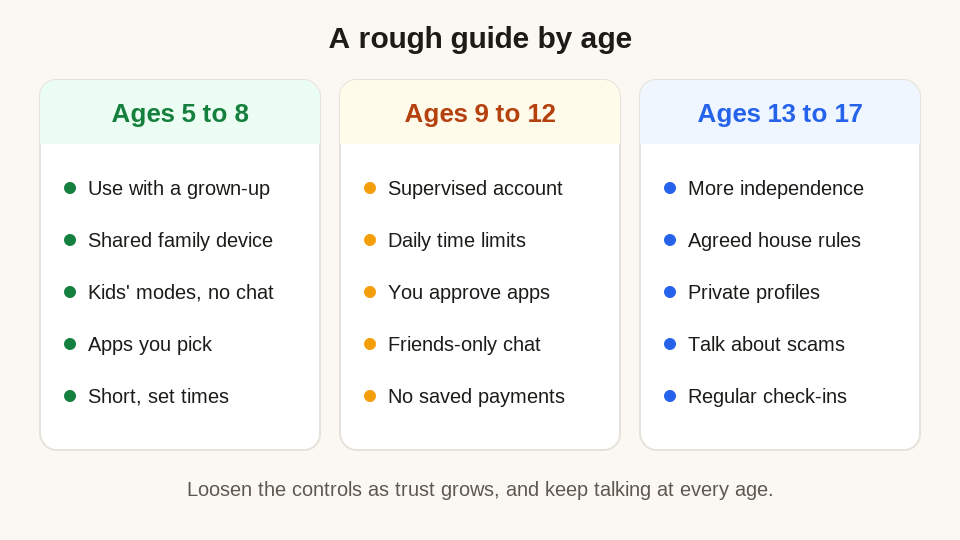
Agree on a few house rules together, and write them down. For example: no sharing our address, school name or photos in uniform; no chatting with people we haven't met; tell a parent if anyone asks for a photo or a secret; screens off an hour before bed.
Promise not to punish honesty. If telling you about a scary video means losing the phone for a month, children stop telling. Thank them for coming to you, then fix the setting together.
Talk about games and chat. Many games have voice or text chat with strangers. Turn off chat for younger children, and for older ones explain that people online are not always who they say.
What the law says about children's data
India's Digital Personal Data Protection Act, 2023 treats anyone under 18 as a child. Companies must get verifiable consent from a parent before processing a child's personal data, and must not track or monitor children's behaviour or show them targeted advertising, except where the rules allow it. The Digital Personal Data Protection Rules were notified in November 2025, with obligations coming into force in phases over 18 months.
For parents, this means you should expect to be asked for consent when a child signs up for apps and services, and you have the right to ask what data is held. It doesn't replace any of the layers above.
If something goes wrong
Stay calm first. Your child is probably more upset than you are, and your reaction decides whether they tell you next time.
- Don't delete anything yet. Take screenshots of messages, usernames and links.
- Block and report the account inside the app.
- Report crimes involving children on the National Cyber Crime Reporting Portal, cybercrime.gov.in, which has a special section for women and children. For money fraud, call 1930.
- In an emergency, call 112.
- Tell the school if other students are involved, so they can act too.
Questions
What is the easiest first step for safe browsing at home?
Give your child their own account or profile on the device you share, without your passwords or payment apps, and turn on the phone's built-in parental controls. Then set a family DNS filter on your Wi-Fi router so every device at home is covered.
Does a family DNS filter block everything bad?
No. It blocks many known adult and malware sites for devices on your Wi-Fi, but it doesn't work on mobile data and can't judge every video or chat. Use it as one layer, together with device controls, safe search and regular conversations.
At what age should a child get their own phone?
There is no single right age, and it depends on the child and the family's needs. Many parents start with a shared family device and a supervised account, and give more independence as the child shows they can handle it. Whatever the age, set up parental controls before you hand it over.
Should I read my child's messages?
For younger children, being in the room and checking together is normal. With teenagers, secret monitoring often damages trust. Agree openly on what you will check and why, and focus on them coming to you when something goes wrong.
Where can I report online abuse of a child in India?
On the National Cyber Crime Reporting Portal at cybercrime.gov.in, which has a section for crimes against women and children. Call 1930 for financial cyber fraud and 112 in an emergency.
Sources
- 1.1.1.1 for Families setup: 1.1.1.3 and 1.0.0.3, Cloudflare
- Set up parental controls on an Android device, Android help centre
- Use parental controls on your child's iPhone or iPad, iPhone support pages
- The Digital Personal Data Protection Act, 2023, MeitY
- Government notifies DPDP Rules, PIB
- DPDP Rules, 2025 notified: a citizen-centric framework, PIB backgrounder
- National Cyber Crime Reporting Portal: focus on crimes against women and children, PIB
- Cyber Crime Helpline 1930, National Cyber Crime Reporting Portal
- Ad and tracker blocking, Hunt Browser features
Hunt Browser blocks ads and trackers before they load, and has Hunt AI built in. Free for Windows and Mac.
Keep reading
Shopping online safely: fake sale sites, cash on delivery and returns
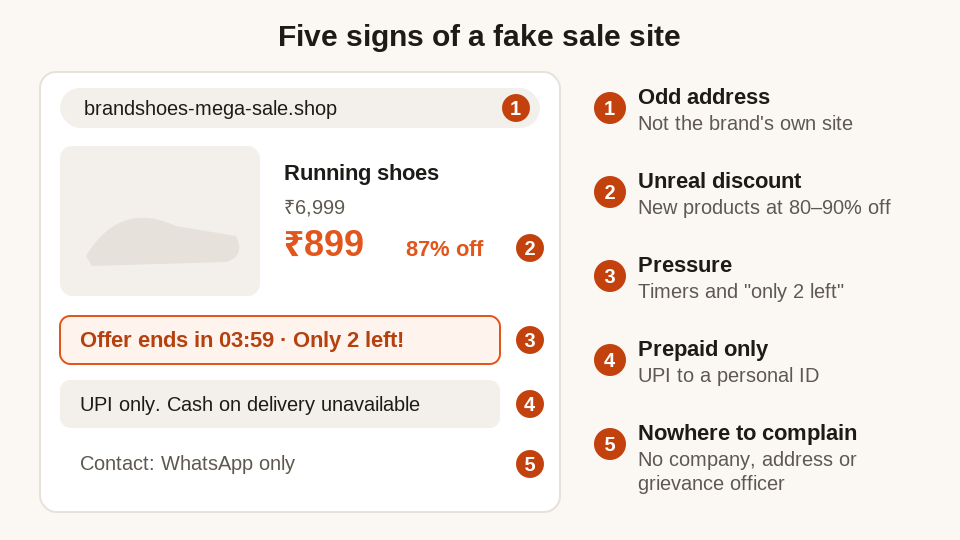
How to spot a fake sale site, when cash on delivery helps, how real refunds work, and where to complain in India if an online order goes wrong.
6 November 2026 · 9 min read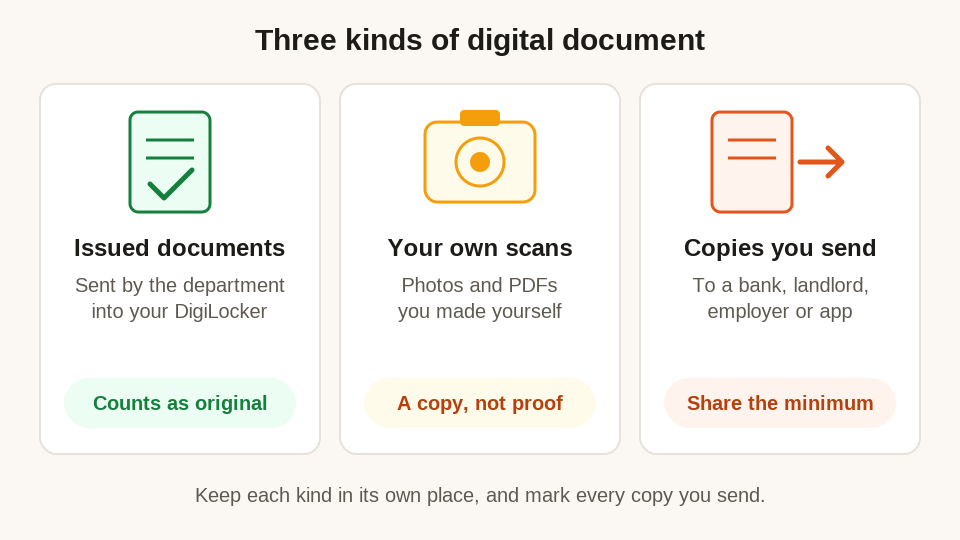
Keeping your documents digital and safe: DigiLocker, PDFs and photos
How to keep Aadhaar, PAN, marksheets and licences on your phone safely, when a DigiLocker copy counts as the original, and how to share a copy without risk.
5 November 2026 · 9 min read
Train travel online: PNR status, waitlists and booking tips
What your PNR status means, how a waitlist moves, when Tatkal opens and what cancelling costs, with every rule checked on official railway sites.
4 November 2026 · 10 min read